> ## Documentation Index
> Fetch the complete documentation index at: https://docs.risingwave.com/llms.txt
> Use this file to discover all available pages before exploring further.
# Workspace
> It is the most intuitive and easy way to interact with RisingWave via workspace. It offers graphical tools for managing data and visualizing results.
export const Button = ({href, children}) => {
return
;
};
## Sections
Click on a section below to see the details.
### Schema
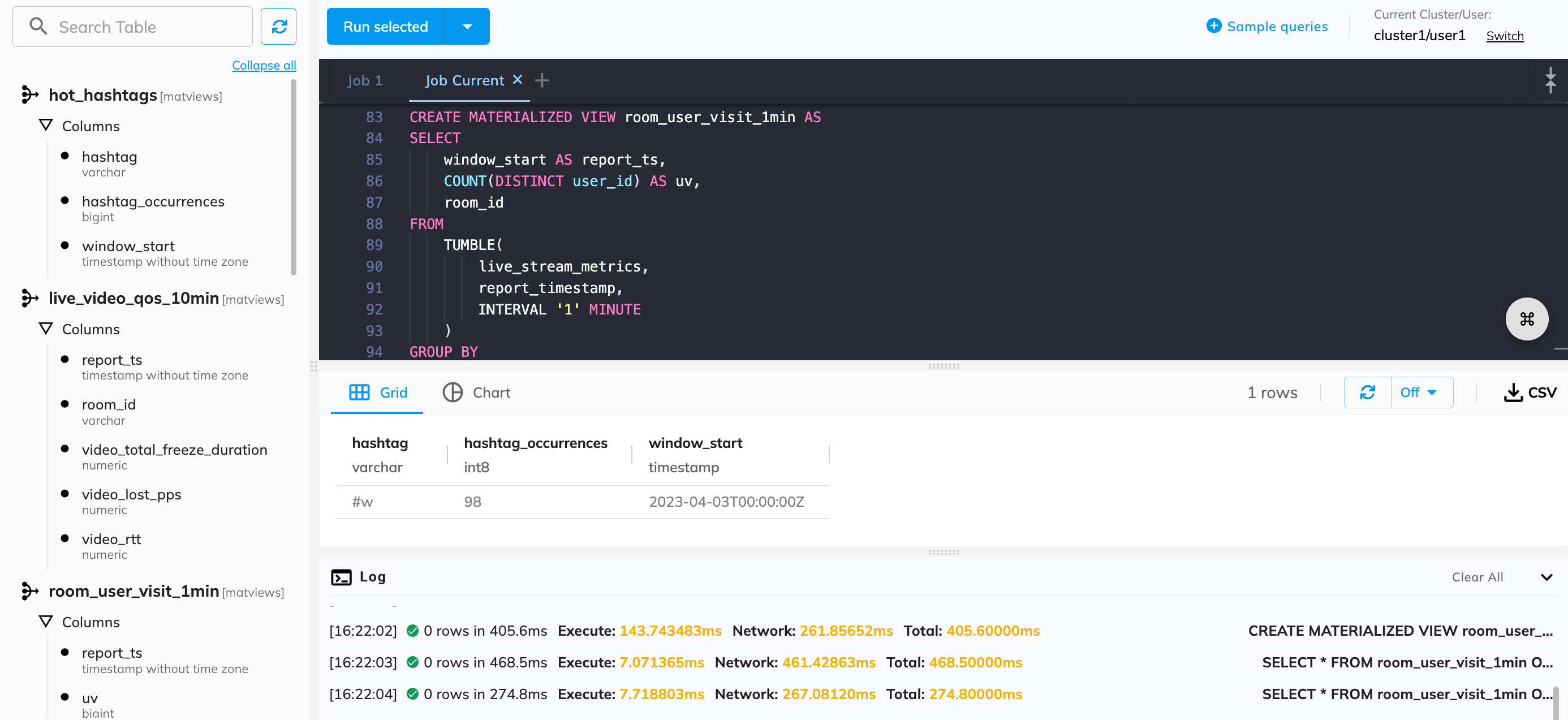
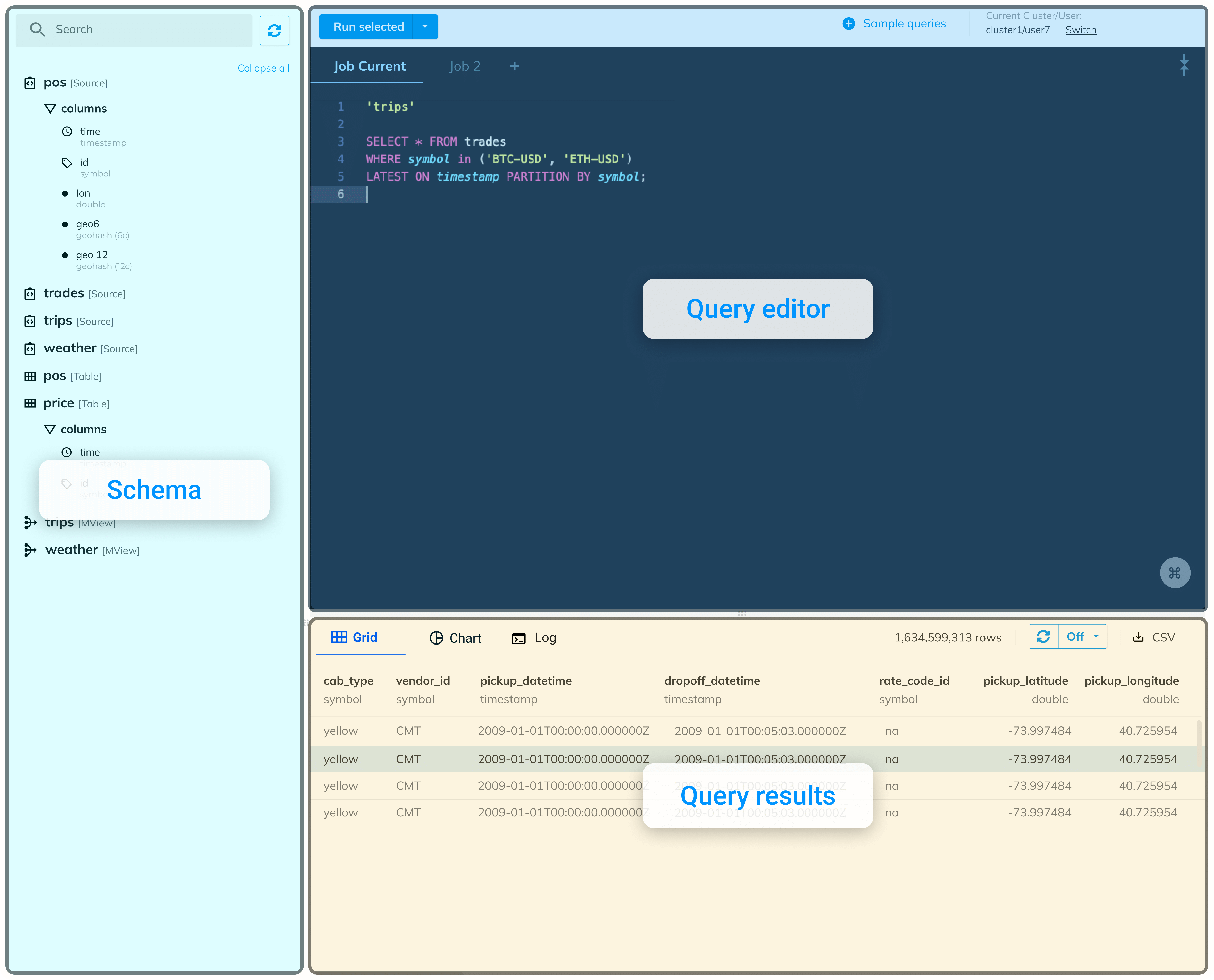
The schema section displays all the tables, sources, materialized views, and sinks defined in the cluster.
To check their columns, click on each item, or click **Expand all** to see all.
### Query editor[](#query-editor "Direct link to Query editor")
The query editor serves as a terminal window where you can write and execute SQL queries.
#### Jobs
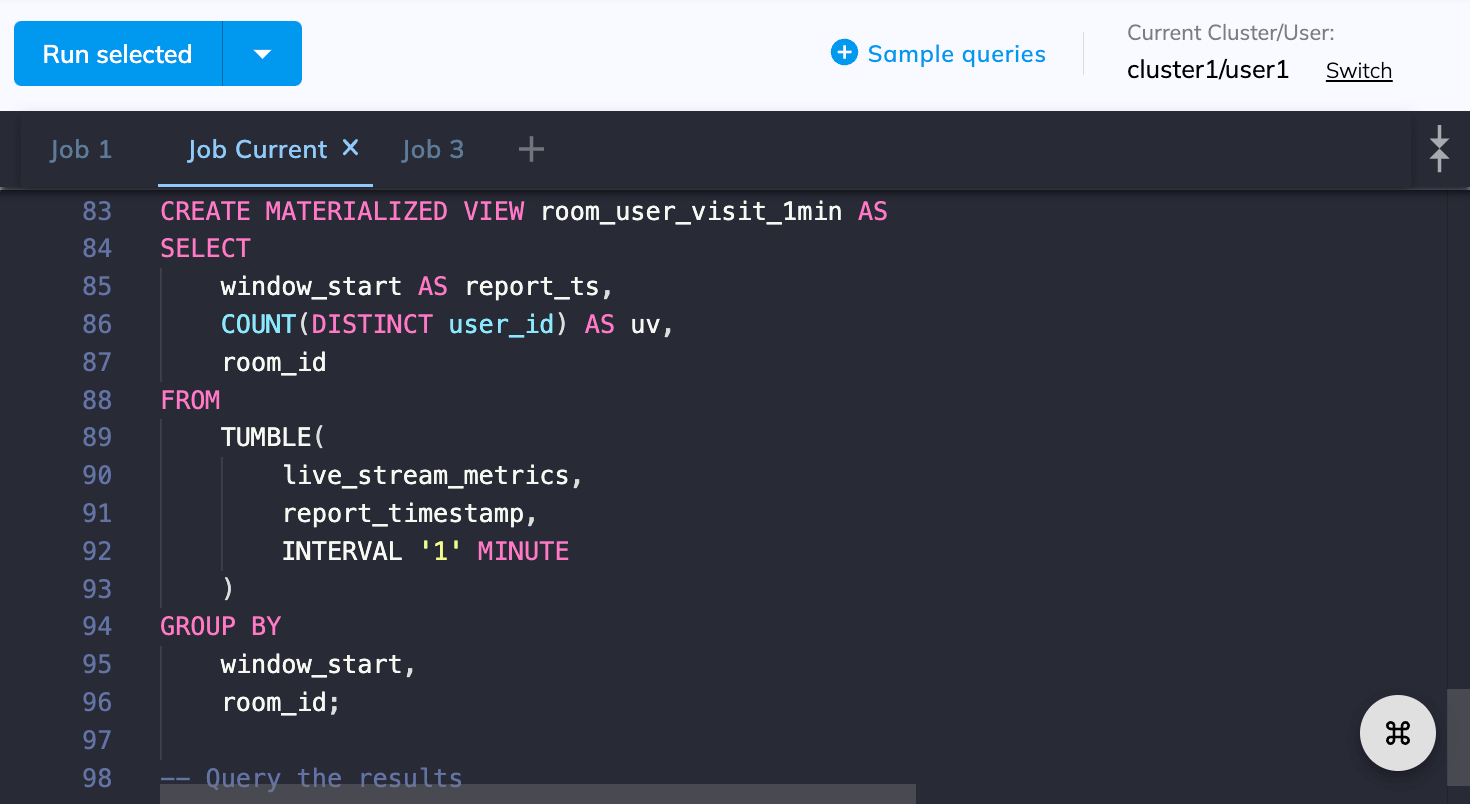
Jobs allow you to organize your SQL statements into groups, making managing and executing multiple queries easier.
Click to add a job.
#### Sample queries
The sample queries cover the most common steps in RisingWave, such as establishing a connection with a data source, processing data by defining materialized views and querying the results.
See [Explore RisingWave with examples](/cloud/quickstart/#step-4-explore-risingwave-with-examples) for details.
#### Switch users
Click **Switch** in the top right corner to change to another user in your current project when using the console.
### Query results
Here you can view the results of your last query.
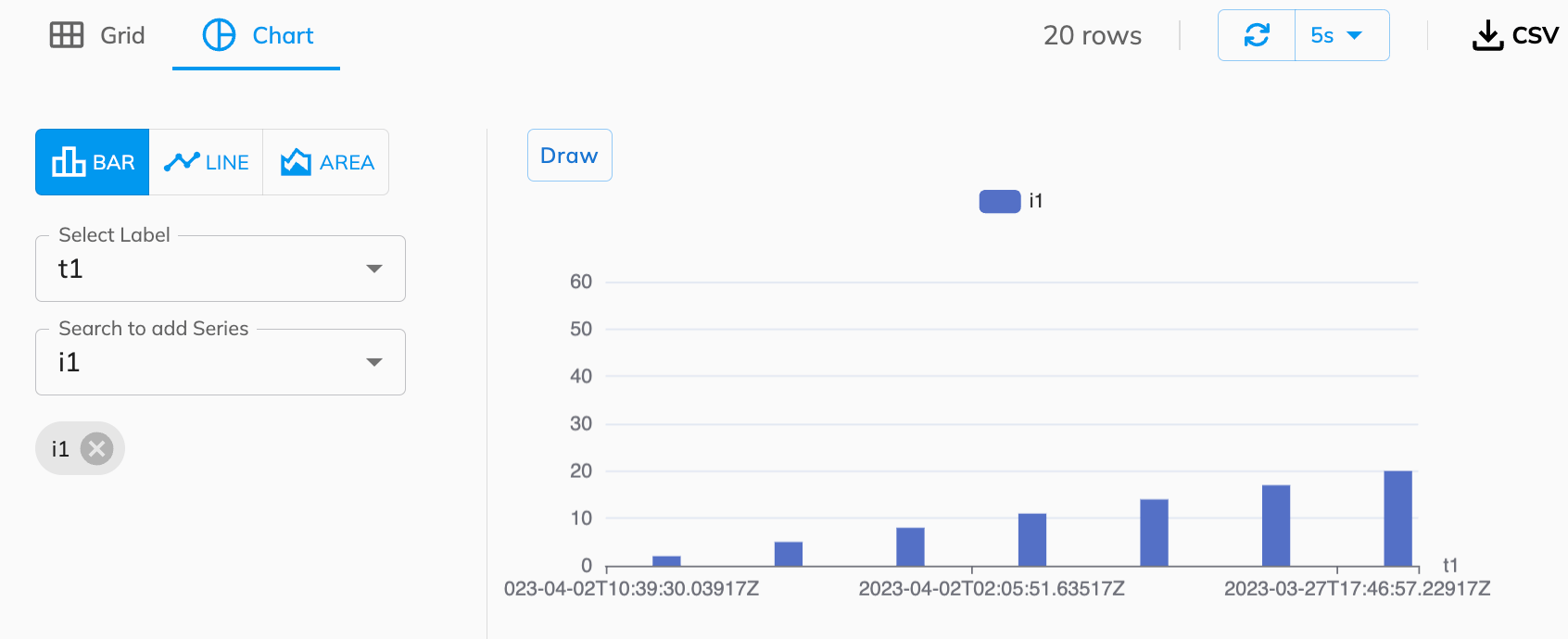
#### Visualize results
Selete the **Chart** tab to visualize the results.
#### Refresh results
Click to rerun the last executed query manually or set a timer to refresh the results automatically.
#### Download results
Click to download a CSV copy of the results.
#### Query log
Selete the **Log** tab to check the query log.
The query log tracks and records all queries executed during the current session, providing information such as the execution time, network time, and error messages. The log can help monitor activity, troubleshoot issues, and optimize queries.
## Start developing
RisingWave Cloud leverages the superpower of RisingWave, an open-source distributed SQL database specifically designed for stream processing. Start building your real-time applications with RisingWave using the console.
 ### Schema
The schema section displays all the tables, sources, materialized views, and sinks defined in the cluster.
To check their columns, click on each item, or click **Expand all** to see all.
### Query editor[](#query-editor "Direct link to Query editor")
The query editor serves as a terminal window where you can write and execute SQL queries.
### Schema
The schema section displays all the tables, sources, materialized views, and sinks defined in the cluster.
To check their columns, click on each item, or click **Expand all** to see all.
### Query editor[](#query-editor "Direct link to Query editor")
The query editor serves as a terminal window where you can write and execute SQL queries.
 #### Jobs
Jobs allow you to organize your SQL statements into groups, making managing and executing multiple queries easier.
Click
#### Jobs
Jobs allow you to organize your SQL statements into groups, making managing and executing multiple queries easier.
Click 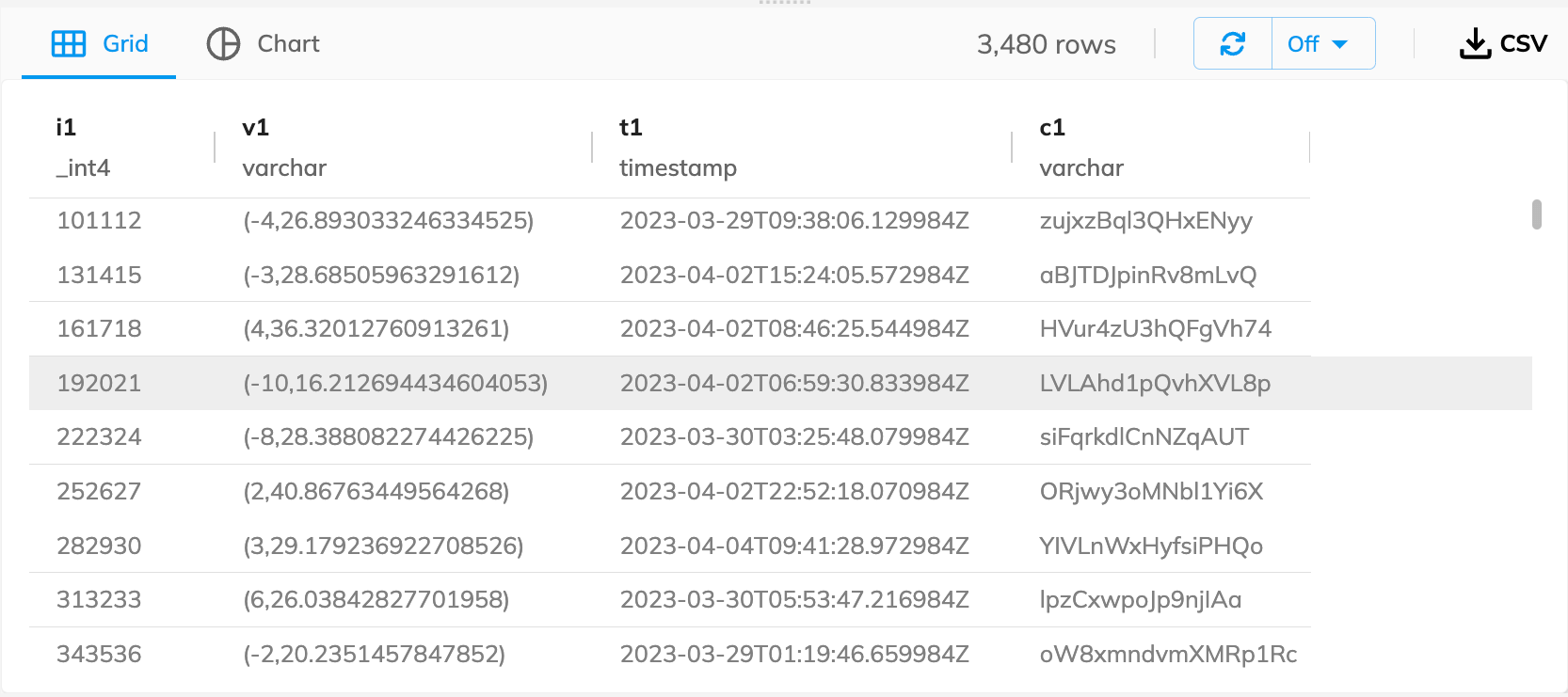 #### Visualize results
Selete the **Chart** tab to visualize the results.
#### Visualize results
Selete the **Chart** tab to visualize the results.
 #### Refresh results
Click
#### Refresh results
Click 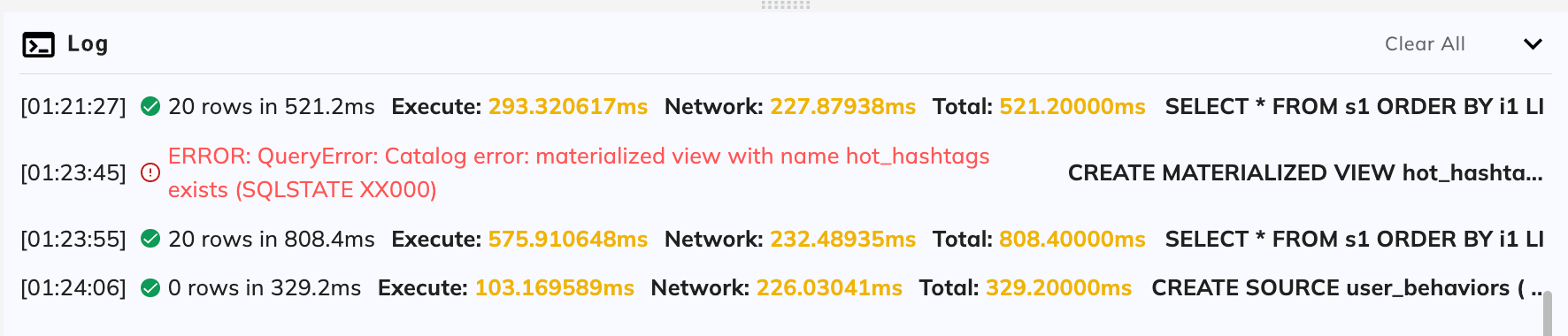 ## Start developing