> ## Documentation Index
> Fetch the complete documentation index at: https://docs.risingwave.com/llms.txt
> Use this file to discover all available pages before exploring further.
# Configure serverless backfilling
> Enable serverless backfilling in RisingWave Cloud and configure the backfiller resources used for materialized view backfill jobs.
## Overview
Serverless backfilling in RisingWave Cloud runs materialized view backfill jobs on dedicated backfiller resources instead of your main streaming compute nodes.
When a serverless backfilling job starts, RisingWave Cloud provisions a temporary resource group for that job by using the configured **Backfiller SKU** and **Replicas** as template values.
This page focuses on enabling and sizing the Cloud resources. For SQL usage, session variables, `WITH` clause options, limitations, and monitoring, see [Serverless backfilling](/processing/serverless-backfill).
## Configure serverless backfilling
Serverless backfilling settings are separate from the main cluster setup. To enable it:
1. Open your project in the RisingWave Cloud console.
2. Select **Resources** in the left sidebar.
3. On the **Resources** page, scroll to the **Backfilling** section. The **Serverless backfilling** row shows its current status and any active backfill jobs. When the feature is off, the status is **Disabled** and an **Enable** button is shown.
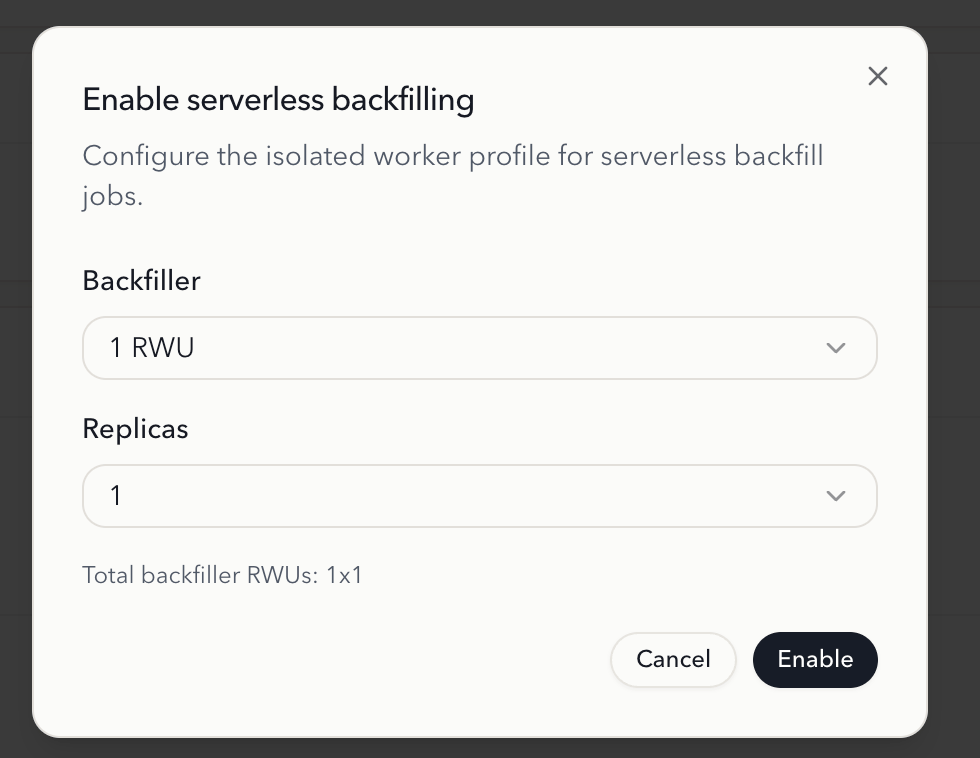
 4. Click **Enable** to open the configuration dialog. Set the **Backfiller** size (SKU) and the number of **Replicas** for the isolated worker profile used by backfill jobs — the dialog shows the resulting **Total backfiller RWUs**. Click **Enable** to confirm.
 ### Backfiller SKU
The **Backfiller SKU** defines the compute size used when RisingWave Cloud provisions the temporary resource group for a serverless backfilling job. Choose a larger SKU for faster backfill throughput on large upstream tables, or a smaller SKU to minimize cost.
### Replicas
**Replicas** sets the default replica count used when RisingWave Cloud provisions the temporary resource group for a serverless backfilling job:
* Increase the replica count if you expect more concurrent backfill work or need higher throughput.
* Use a smaller replica count if you want to keep backfill resource usage lower.
A large **Backfiller SKU** or replica count produces high write throughput while a backfill runs, which increases compaction load. If your compactor is sized only for steady-state traffic, it can fall behind and cause compaction back pressure or write stalls. For example, a project that runs steadily on a 4 RWU compactor can stall if you start a 32 RWU serverless backfilling job without scaling compaction.
We strongly recommend enabling **Serverless Compaction** so compactors scale automatically with the backfill load. Otherwise, scale your compactor manually before running heavy backfill jobs.
## Scheduling behavior
RisingWave Cloud manages the backfill resources automatically:
1. When a new serverless backfilling job is submitted, the serverless backfilling controller creates a dynamic resource group for that job by using the configured Backfiller SKU and Replicas.
2. The backfill job runs in that dynamic resource group during materialized view creation.
3. After the materialized view is created successfully, the materialized view is migrated to its **steady-state resource group** (the resource group of its parent database) for normal streaming execution.
## Use serverless backfilling in SQL
After enabling serverless backfilling in the Cloud console, use either `SET enable_serverless_backfill = true` or `WITH (cloud.serverless_backfill_enabled = true)` when creating a materialized view.
See [Serverless backfilling](/processing/serverless-backfill) for:
* SQL examples
* Session-variable and per-statement configuration
* Monitoring and progress tracking
## See also
Learn how to use serverless backfilling in SQL, including the session variable, `WITH` clause, and monitoring options.
Learn how RisingWave initializes materialized views from existing data and the different backfill strategies available.
Manage resource groups and databases in your RisingWave Cloud project.
### Backfiller SKU
The **Backfiller SKU** defines the compute size used when RisingWave Cloud provisions the temporary resource group for a serverless backfilling job. Choose a larger SKU for faster backfill throughput on large upstream tables, or a smaller SKU to minimize cost.
### Replicas
**Replicas** sets the default replica count used when RisingWave Cloud provisions the temporary resource group for a serverless backfilling job:
* Increase the replica count if you expect more concurrent backfill work or need higher throughput.
* Use a smaller replica count if you want to keep backfill resource usage lower.
A large **Backfiller SKU** or replica count produces high write throughput while a backfill runs, which increases compaction load. If your compactor is sized only for steady-state traffic, it can fall behind and cause compaction back pressure or write stalls. For example, a project that runs steadily on a 4 RWU compactor can stall if you start a 32 RWU serverless backfilling job without scaling compaction.
We strongly recommend enabling **Serverless Compaction** so compactors scale automatically with the backfill load. Otherwise, scale your compactor manually before running heavy backfill jobs.
## Scheduling behavior
RisingWave Cloud manages the backfill resources automatically:
1. When a new serverless backfilling job is submitted, the serverless backfilling controller creates a dynamic resource group for that job by using the configured Backfiller SKU and Replicas.
2. The backfill job runs in that dynamic resource group during materialized view creation.
3. After the materialized view is created successfully, the materialized view is migrated to its **steady-state resource group** (the resource group of its parent database) for normal streaming execution.
## Use serverless backfilling in SQL
After enabling serverless backfilling in the Cloud console, use either `SET enable_serverless_backfill = true` or `WITH (cloud.serverless_backfill_enabled = true)` when creating a materialized view.
See [Serverless backfilling](/processing/serverless-backfill) for:
* SQL examples
* Session-variable and per-statement configuration
* Monitoring and progress tracking
## See also
Learn how to use serverless backfilling in SQL, including the session variable, `WITH` clause, and monitoring options.
Learn how RisingWave initializes materialized views from existing data and the different backfill strategies available.
Manage resource groups and databases in your RisingWave Cloud project.