> ## Documentation Index
> Fetch the complete documentation index at: https://docs.risingwave.com/llms.txt
> Use this file to discover all available pages before exploring further.
# Connect DBeaver to RisingWave
> DBeaver is a versatile database tool that provides a user-friendly interface for managing and interacting with a variety of database systems. DBeaver allows users to connect to databases, execute SQL scripts, export data to various formats, and perform other database-related tasks. Features such as a SQL editor, database explorer, and data visualization tools, are included.
This guide will go over how to connect DBeaver to RisingWave so you can seamlessly manage and query RisingWave data with DBeaver's intuitive interface.
## Prerequisites
* Ensure that DBeaver is installed. To download DBeaver, see the [DBeaver download page](https://dbeaver.io/download/). Please make sure that your DBeaver version is at least [v23.3.4](https://dbeaver.io/2024/02/04/dbeaver-23-3-4/).
* Install and start RisingWave. For instructions on how to get started, see the [Quick start guide](/get-started/quickstart).
## Establish the connection
1. In DBeaver, from the menu bar, select **Database > New database connection**.
2. In the **Connect to a database** window, select **RisingWave**. Click **Next**.
3. Under **Connection settings**, provide the following information:
* Host: The hostname or IP address of the RisingWave database. The default **Host** is `localhost`.
* Port: The port number of the RisingWave database. The default **Port** is `4566`.
* Database: The name of the RisingWave database you want to connect to. The default **Database** is `dev`.
* Username: The username for accessing the database. The default **Username** is `root`.
* Password: The password associated with the provided username. By default, there is no password for `root`.
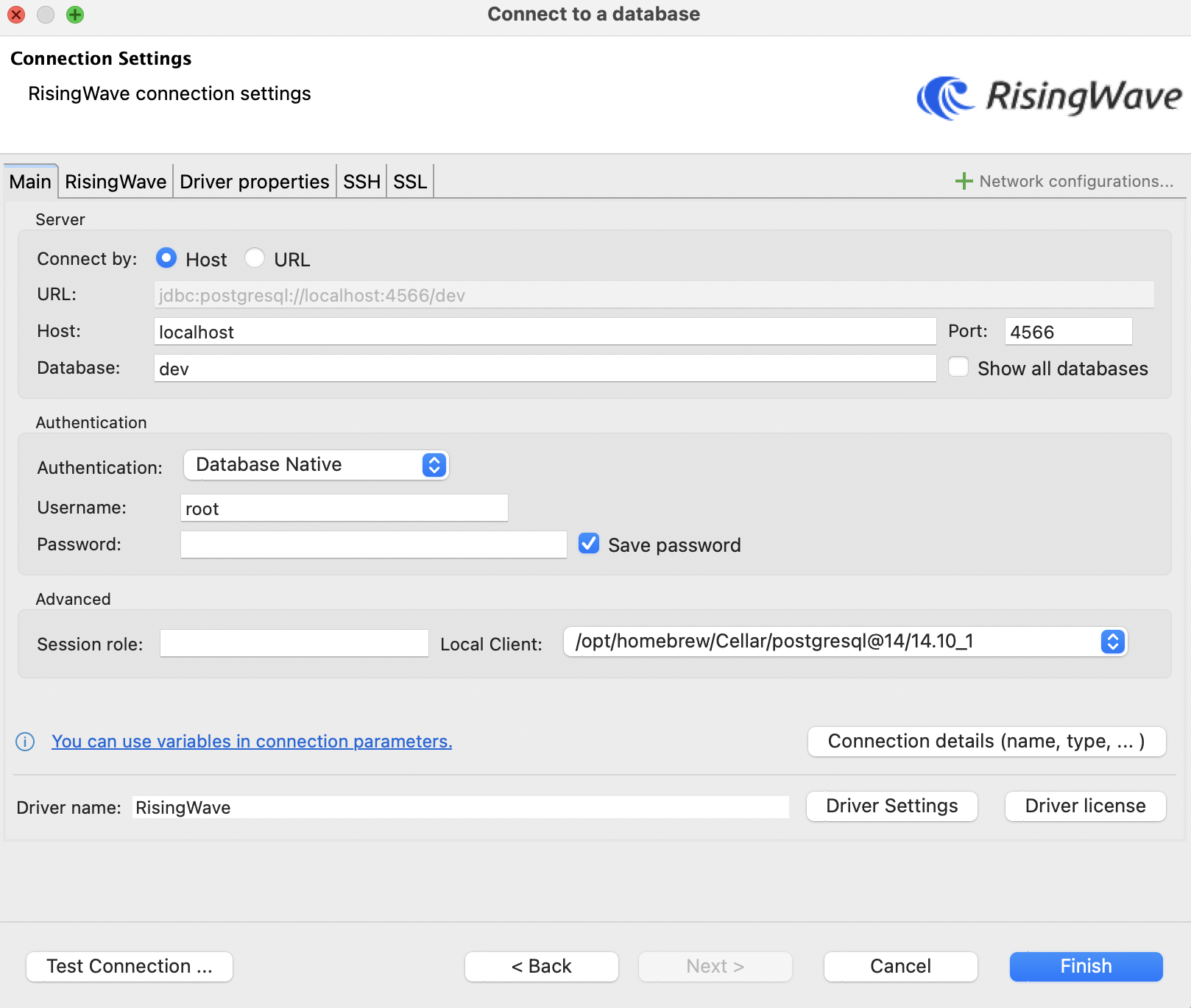 4. Click **Test connection**. If there are no errors, click **Finish**.
Now that the connection is established, the RisingWave database should be listed in the DBeaver sidebar under **Database navigator**. By default, anything created in RisingWave, such as tables, sources, or materialized views, will be listed under the `dev` database and the `public` schema.
4. Click **Test connection**. If there are no errors, click **Finish**.
Now that the connection is established, the RisingWave database should be listed in the DBeaver sidebar under **Database navigator**. By default, anything created in RisingWave, such as tables, sources, or materialized views, will be listed under the `dev` database and the `public` schema.