> ## Documentation Index
> Fetch the complete documentation index at: https://docs.risingwave.com/llms.txt
> Use this file to discover all available pages before exploring further.
# Configure Grafana to read data from RisingWave
> Grafana is an open-source analytics and visualization web application. It is well suited for time-series data as well as application and server monitoring.
This guide will go over how to add RisingWave as a data source in Grafana.
## Prerequisites
### Install and launch RisingWave
To install and start RisingWave locally, see the [Get started](/get-started/quickstart) guide. We recommend running RisingWave locally for testing purposes.
Connect to streaming sources. For details on connecting to a streaming source and what connectors are supported with RisingWave, see [CREATE SOURCE](/sql/commands/sql-create-source).
### Install and launch Grafana
To install Grafana locally, see the [Install Grafana](https://grafana.com/docs/grafana/latest/setup-grafana/installation/) guide. Next, to start Grafana, follow the **Sign in to Grafana** step of the [Build your first dashboard](https://grafana.com/docs/grafana/latest/getting-started/build-first-dashboard/) guide.
## Establish a connection between RisingWave and Grafana
### Add RisingWave as a data source
1. Go to **Configuration > Data source**.
2. Click the **Add data source** button.
3. Select **PostgreSQL** from the list of supported databases.
4. Fill in the **PostgreSQL Connection** fields like so:
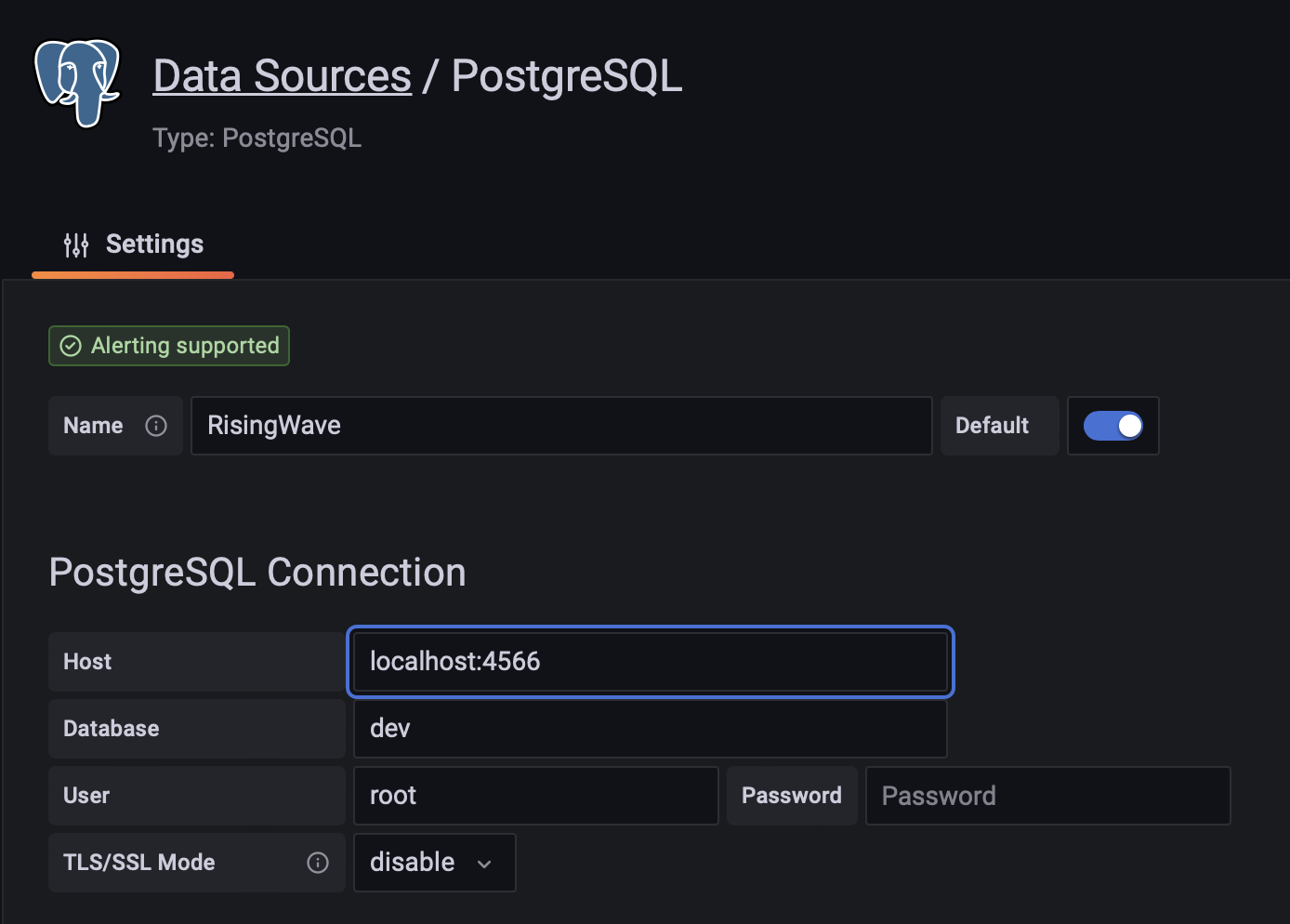 If both RisingWave and Grafana are started locally, the host domain can be either **localhost:4566** or **127.0.0.1:4566**.
If you are running Grafana Cloud, the host domain should be your computer’s public IP address.
5. Click **Save & test**.
For this guide, we connected to RisingWave with the `root` user. In production, it is recommended to use a dedicated read-only user when querying the database using Grafana.
To add a new read-only user, use the following SQL query:
```sql theme={null}
CREATE USER grafanareader WITH PASSWORD 'password';
```
Then, when adding RisingWave as a database, fill in the **User** and **Password** fields with the name and password of the new user created. For more details on creating a user, see the [CREATE USER](/sql/commands/sql-create-user) command.
To allow the read-only user to query from a materialized view, use the following SQL query:
```sql theme={null}
GRANT SELECT ON MATERIALIZED VIEW mv_name TO grafanareader;
```
See the [GRANT](/sql/commands/sql-grant) command for more details.
Now that RisingWave is added as a database, you can start creating dashboards within Grafana using the data in RisingWave.
## Configure Grafana to read data from RisingWave Cloud
Grafana can also be configured to visualize and monitor data from a RisingWave Cloud cluster, allowing you to build charts and real-time dashboards based on tables and materialized views. Follow these steps to integrate RisingWave as a data source in Grafana.
### Add RisingWave Cloud as a Data Source in Grafana
1. Access Data Source Settings. In Grafana, navigate to **Configuration > Data Sources** from the left-hand sidebar.
2. Add a New Data Source. Click the **Add Data Source** button at the top of the page.
3. From the list of available database integrations, choose **PostgreSQL**. RisingWave is PostgreSQL-compatible, so this option works perfectly for connecting to it.
4. Configure PostgreSQL connection by filling in the following connection details based on your RisingWave Cloud cluster:
* **Host**: Provide the hostname of your RisingWave Cloud instance. The format will typically be something like: `your-rw-cluster-host-url:4566`.
* **Database**: Enter the database name as `dev`.
* **User**: Use the username associated with your RisingWave Cloud cluster.
If both RisingWave and Grafana are started locally, the host domain can be either **localhost:4566** or **127.0.0.1:4566**.
If you are running Grafana Cloud, the host domain should be your computer’s public IP address.
5. Click **Save & test**.
For this guide, we connected to RisingWave with the `root` user. In production, it is recommended to use a dedicated read-only user when querying the database using Grafana.
To add a new read-only user, use the following SQL query:
```sql theme={null}
CREATE USER grafanareader WITH PASSWORD 'password';
```
Then, when adding RisingWave as a database, fill in the **User** and **Password** fields with the name and password of the new user created. For more details on creating a user, see the [CREATE USER](/sql/commands/sql-create-user) command.
To allow the read-only user to query from a materialized view, use the following SQL query:
```sql theme={null}
GRANT SELECT ON MATERIALIZED VIEW mv_name TO grafanareader;
```
See the [GRANT](/sql/commands/sql-grant) command for more details.
Now that RisingWave is added as a database, you can start creating dashboards within Grafana using the data in RisingWave.
## Configure Grafana to read data from RisingWave Cloud
Grafana can also be configured to visualize and monitor data from a RisingWave Cloud cluster, allowing you to build charts and real-time dashboards based on tables and materialized views. Follow these steps to integrate RisingWave as a data source in Grafana.
### Add RisingWave Cloud as a Data Source in Grafana
1. Access Data Source Settings. In Grafana, navigate to **Configuration > Data Sources** from the left-hand sidebar.
2. Add a New Data Source. Click the **Add Data Source** button at the top of the page.
3. From the list of available database integrations, choose **PostgreSQL**. RisingWave is PostgreSQL-compatible, so this option works perfectly for connecting to it.
4. Configure PostgreSQL connection by filling in the following connection details based on your RisingWave Cloud cluster:
* **Host**: Provide the hostname of your RisingWave Cloud instance. The format will typically be something like: `your-rw-cluster-host-url:4566`.
* **Database**: Enter the database name as `dev`.
* **User**: Use the username associated with your RisingWave Cloud cluster.
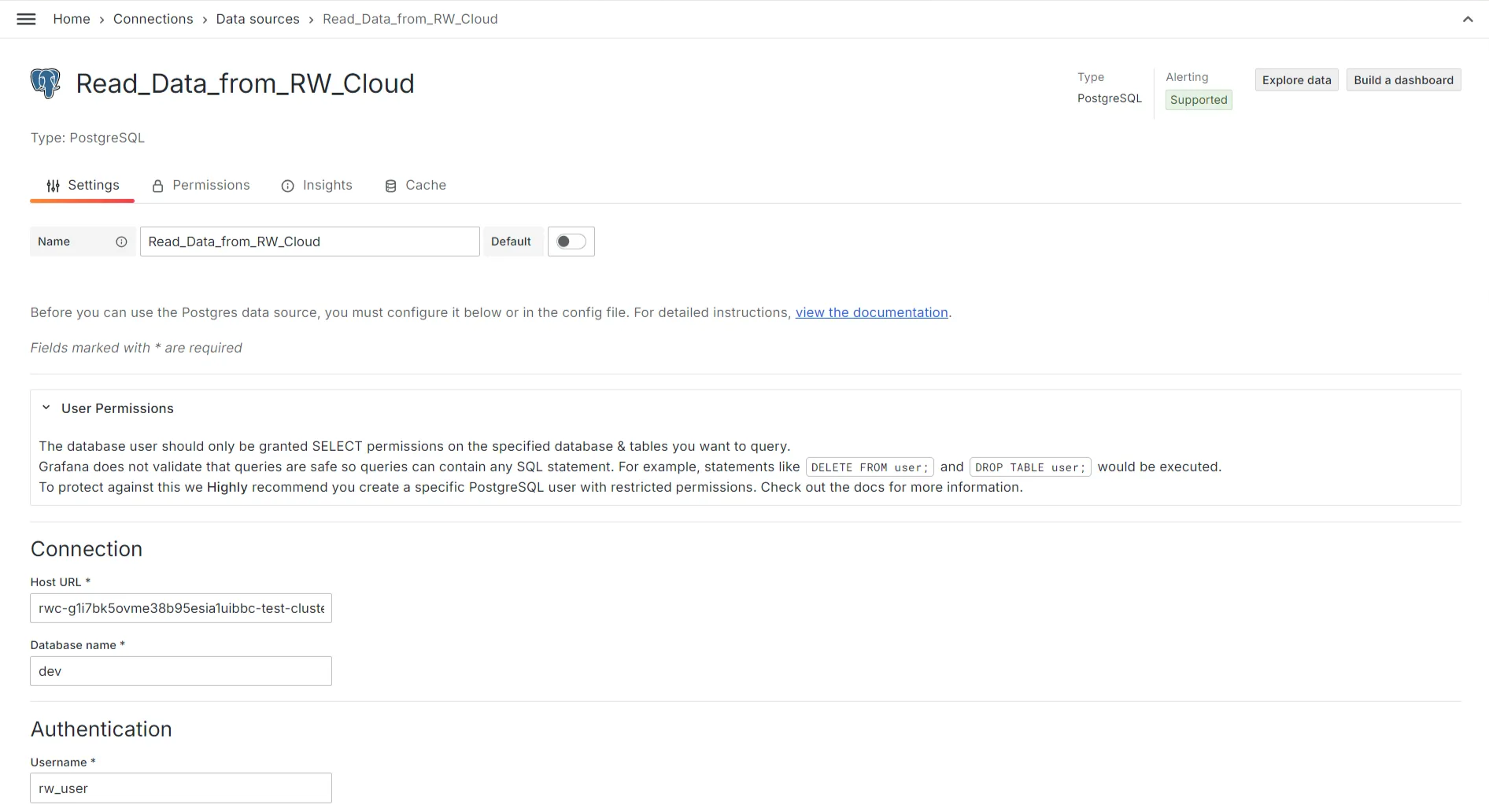 * **Password**: Enter the password for the corresponding username.
* **TLS/SSL Mode**: Set this to `verify-full` for secure connections. This will ensure that data transferred between Grafana and RisingWave is encrypted and verified.
5. Optional fields such as **File System Path** and **Certificate Content** can be left blank.
* **Password**: Enter the password for the corresponding username.
* **TLS/SSL Mode**: Set this to `verify-full` for secure connections. This will ensure that data transferred between Grafana and RisingWave is encrypted and verified.
5. Optional fields such as **File System Path** and **Certificate Content** can be left blank.
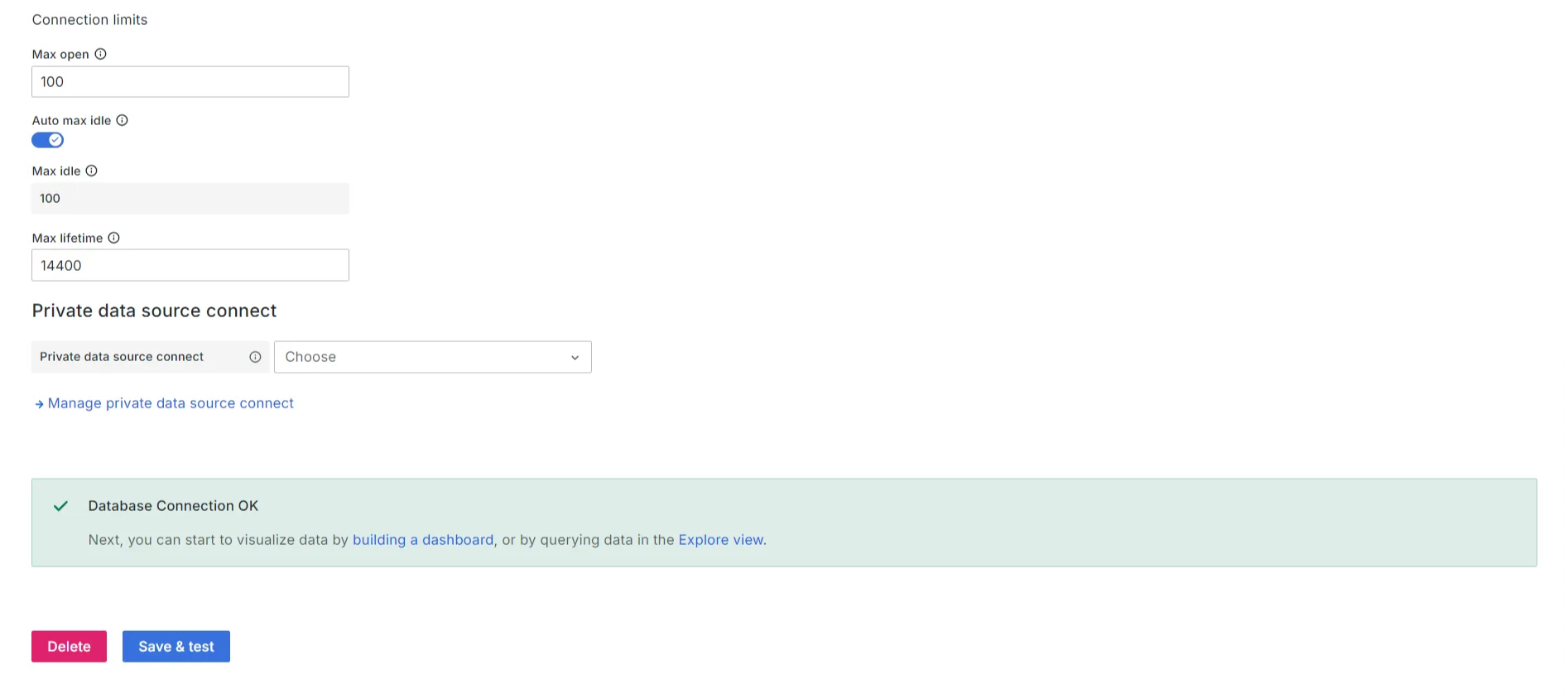
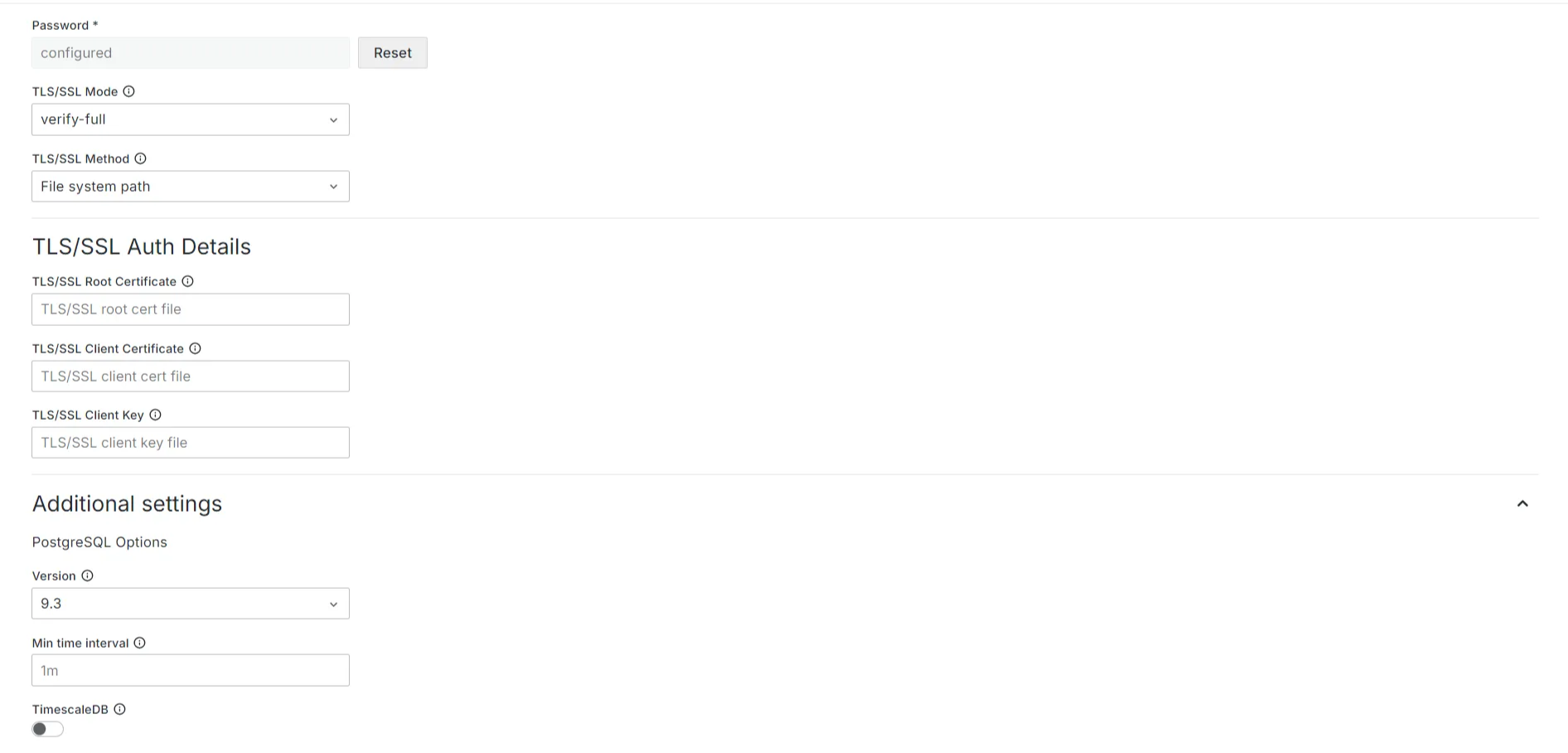 6. Test the Connection. Once you’ve entered the required fields, scroll down and click the **Save & Test** button to check the connection. If successful, Grafana will confirm that it can connect to your RisingWave Cloud instance.
 ### Create dashboards and visualizations
After adding RisingWave as a data source, you can now create dynamic dashboards and real-time visualizations using tables and materialized views from your RisingWave Cloud cluster.
* Start by creating a new dashboard. Go to **Dashboards > New Dashboard** and select **Add New Panel**.
* Use the Grafana query editor to write SQL queries that extract data from your RisingWave tables or materialized views. Since RisingWave is PostgreSQL-compatible, the query syntax will follow PostgreSQL standards.
* Visualize data. Choose from Grafana's wide range of visualization options (e.g. time series, bar charts, tables) to represent your data in a meaningful way.
With this setup, you can build real-time dashboards in Grafana, powered by the high-performance and advanced real-time data processing capabilities of RisingWave Cloud.
### Create dashboards and visualizations
After adding RisingWave as a data source, you can now create dynamic dashboards and real-time visualizations using tables and materialized views from your RisingWave Cloud cluster.
* Start by creating a new dashboard. Go to **Dashboards > New Dashboard** and select **Add New Panel**.
* Use the Grafana query editor to write SQL queries that extract data from your RisingWave tables or materialized views. Since RisingWave is PostgreSQL-compatible, the query syntax will follow PostgreSQL standards.
* Visualize data. Choose from Grafana's wide range of visualization options (e.g. time series, bar charts, tables) to represent your data in a meaningful way.
With this setup, you can build real-time dashboards in Grafana, powered by the high-performance and advanced real-time data processing capabilities of RisingWave Cloud.