> ## Documentation Index
> Fetch the complete documentation index at: https://docs.risingwave.com/llms.txt
> Use this file to discover all available pages before exploring further.
# Air-gapped deployment
> Prepare RisingWave Console for restricted networks by mirroring images, mounting license files, and providing Helm charts and risectl binaries.
Use this guide when Console and the Kubernetes cluster it manages cannot reach the public internet.
Air-gapped deployments need more preparation because Console may otherwise download `risectl` binaries, pull public images, or fetch Helm charts during environment installation.
## Checklist
Prepare these artifacts before starting Console:
* Console image, usually an `-airgap` tag if you need pre-cached `risectl` binaries.
* Signed RisingWave license key.
* Private Docker registry reachable from the Kubernetes nodes.
* Mirrored images for Console-managed components.
* cert-manager and RisingWave Operator Helm chart archives.
* Any RisingWave database images you plan to deploy.
* Optional Grafana dashboards if your workflow installs Grafana.
## Start Console without internet access
Set:
```shell theme={null}
RCONSOLE_NOINTERNET=true
```
When this flag is enabled, Console expects required artifacts to be available locally. Also configure:
```shell theme={null}
RCONSOLE_RISECTLDIR=/risingwave-console-data/risectl
RCONSOLE_HELM_CHART_DIR=/risingwave-console-data/helm-charts
RW_LICENSE_KEY_PATH=/etc/rconsole/license.jwt
```
Mount those directories or files into the Console container or pod.
## Mirror images
Mirror the images used by Console-managed infrastructure into your private registry. The Console repository includes helper scripts for testing and mirroring:
```shell theme={null}
cd dev/private-registry
REGISTRY=registry.example.com/proxy ./sync-public-images.sh
```
If you already downloaded the Helm chart archives, point the script at them so it can extract chart-default images:
```shell theme={null}
REGISTRY=registry.example.com/proxy \
CERT_MANAGER_CHART_PATH=/path/to/cert-manager.tgz \
OPERATOR_CHART_PATH=/path/to/risingwave-operator.tgz \
./sync-public-images.sh
```
Add the RisingWave database image tags you plan to deploy:
```shell theme={null}
REGISTRY=registry.example.com/proxy \
EXTRA_IMAGES="risingwavelabs/risingwave:v2.8.2" \
./sync-public-images.sh
```
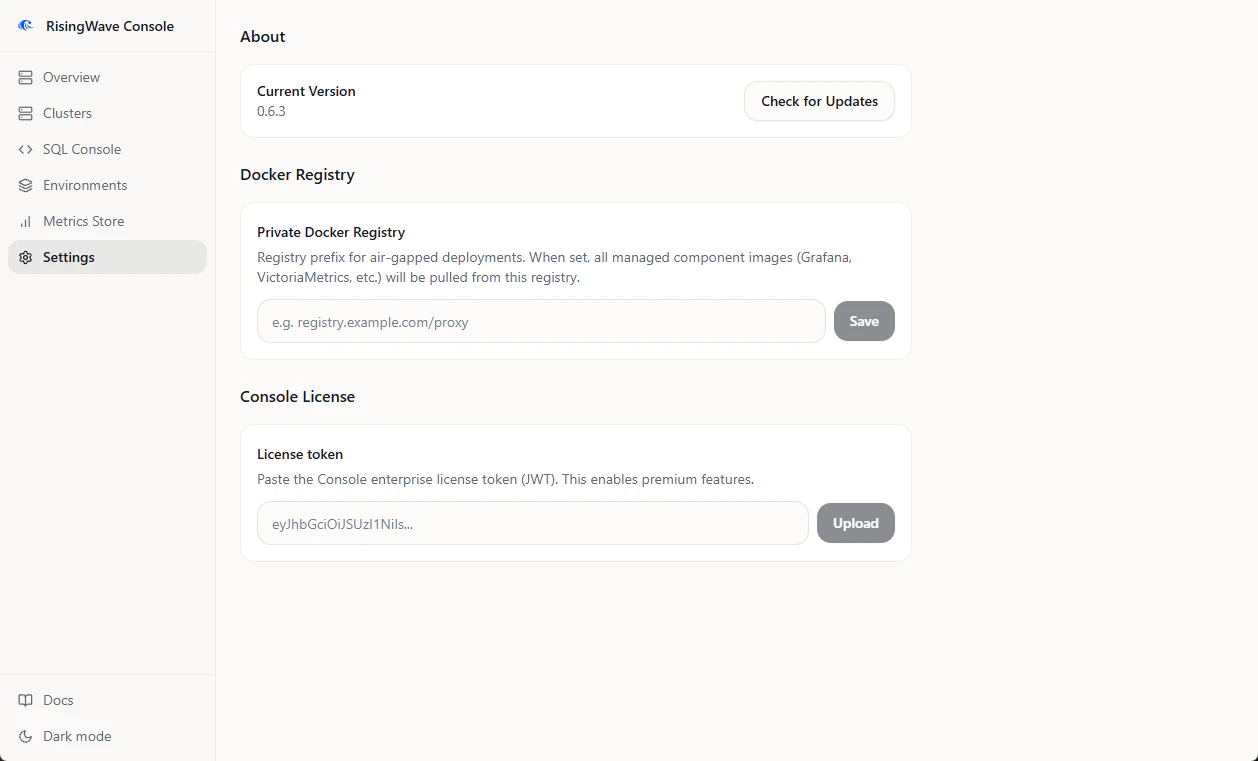
## Configure the private registry in Console
1. Open **Settings**.
2. Find **Docker Registry**.
3. Set **Private Docker Registry** to the same prefix used when mirroring images, for example `registry.example.com/proxy`.
4. Click **Save**.
When this setting is present, Console uses the private registry prefix for managed component images, such as Grafana and VictoriaMetrics.
 ## Provide Helm charts
In air-gapped mode, Console cannot fetch missing Helm charts. Put chart archives in the directory configured by `RCONSOLE_HELM_CHART_DIR`, or upload them from the relevant install workflow when the UI prompts for a chart archive.
The default chart directory is:
```text theme={null}
/risingwave-console-data/helm-charts
```
Chart archives must be valid `.tgz` Helm chart files.
## Provide risectl binaries
Console uses `risectl` for cluster operations. In a connected deployment, it can download the needed version. In an air-gapped deployment, use an air-gap Console image with the needed versions pre-cached, or mount binaries under:
```text theme={null}
//risectl
```
For example:
```text theme={null}
/risingwave-console-data/risectl/v2.8.2/risectl
```
## Validate the setup
Before creating production clusters:
1. Confirm Console starts with `RCONSOLE_NOINTERNET=true`.
2. Confirm **Settings** shows the private Docker registry value.
3. Create an environment with the same components you plan to use in production.
4. Watch the install logs for image pull or chart lookup errors.
5. Run the environment acceptance test.
## Troubleshooting
| Symptom | Check |
| ----------------------------------------------------- | --------------------------------------------------------------------------------------------------------------------- |
| `helm chart not available for air-gapped install` | Upload the required chart archive or mount it under `RCONSOLE_HELM_CHART_DIR`. |
| Kubernetes reports `ImagePullBackOff` | Confirm the private registry prefix, mirrored image names, image tags, and node registry credentials. |
| `risectl` command fails because the binary is missing | Mount the expected `risectl` version under `RCONSOLE_RISECTLDIR`, or use an air-gap image with that version included. |
| Private HTTP registry cannot be pulled by containerd | Configure the Kubernetes nodes to trust the registry as an insecure registry, or serve it with TLS. |
## Provide Helm charts
In air-gapped mode, Console cannot fetch missing Helm charts. Put chart archives in the directory configured by `RCONSOLE_HELM_CHART_DIR`, or upload them from the relevant install workflow when the UI prompts for a chart archive.
The default chart directory is:
```text theme={null}
/risingwave-console-data/helm-charts
```
Chart archives must be valid `.tgz` Helm chart files.
## Provide risectl binaries
Console uses `risectl` for cluster operations. In a connected deployment, it can download the needed version. In an air-gapped deployment, use an air-gap Console image with the needed versions pre-cached, or mount binaries under:
```text theme={null}
//risectl
```
For example:
```text theme={null}
/risingwave-console-data/risectl/v2.8.2/risectl
```
## Validate the setup
Before creating production clusters:
1. Confirm Console starts with `RCONSOLE_NOINTERNET=true`.
2. Confirm **Settings** shows the private Docker registry value.
3. Create an environment with the same components you plan to use in production.
4. Watch the install logs for image pull or chart lookup errors.
5. Run the environment acceptance test.
## Troubleshooting
| Symptom | Check |
| ----------------------------------------------------- | --------------------------------------------------------------------------------------------------------------------- |
| `helm chart not available for air-gapped install` | Upload the required chart archive or mount it under `RCONSOLE_HELM_CHART_DIR`. |
| Kubernetes reports `ImagePullBackOff` | Confirm the private registry prefix, mirrored image names, image tags, and node registry credentials. |
| `risectl` command fails because the binary is missing | Mount the expected `risectl` version under `RCONSOLE_RISECTLDIR`, or use an air-gap image with that version included. |
| Private HTTP registry cannot be pulled by containerd | Configure the Kubernetes nodes to trust the registry as an insecure registry, or serve it with TLS. |