> ## Documentation Index
> Fetch the complete documentation index at: https://docs.risingwave.com/llms.txt
> Use this file to discover all available pages before exploring further.
# Connect to your RisingWave clusters
> Learn how to connect your existing RisingWave instances to RisingWave Console by adding cluster details, testing connections, and managing these configurations.
Use this page when you already have a running RisingWave cluster and want Console to monitor it, expose it in SQL Console, and run operational workflows such as `risectl`, snapshots, and diagnostics.
This flow registers a cluster connection. It does not create a new RisingWave cluster. To let Console provision a managed cluster on Kubernetes, use [Manage Kubernetes environments](/web-ui/risingwave-console/manage-environments).
## Prerequisites
Console must be able to reach three RisingWave endpoints:
| Endpoint | Default | Notes |
| ------------------ | ------------------ | ------------------------------------------------------------------ |
| SQL endpoint | `host:4566` | Points to the RisingWave frontend. |
| Meta RPC endpoint | `http://host:5690` | Points to the RisingWave Meta node RPC endpoint. |
| Meta HTTP endpoint | `http://host:5691` | Points to the RisingWave Meta node HTTP API and dashboard service. |
If the cluster runs in Kubernetes, use Service DNS names that resolve from the Console pod. For a Service in another namespace, use a full name such as `risingwave-frontend.risingwave.svc.cluster.local:4566`.
## Add a cluster connection
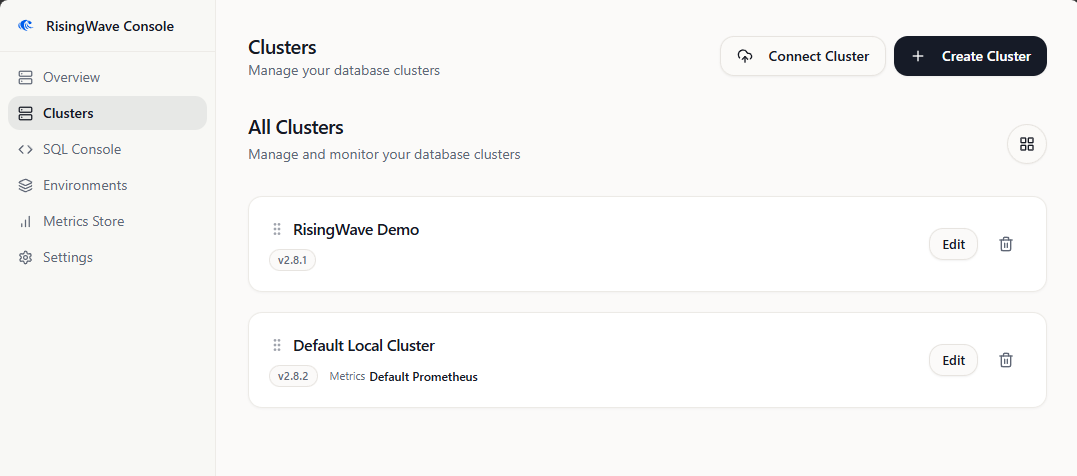
1. Open **Clusters** from the sidebar.
2. Click **Import** or **Connect Cluster**. The cluster connection form opens.
3. Fill in the cluster details:
* **Name**: Provide a unique, user-friendly name for this RisingWave instance as it will appear within RisingWave Console (for example, `Production RW-East`, `Staging Cluster`, `My Local Dev RW`).
* **SQL Endpoint**: Enter the frontend endpoint, such as `rw.example.com:4566` or `risingwave-frontend.risingwave.svc.cluster.local:4566`.
* **Meta RPC Endpoint**: Enter the Meta RPC endpoint, such as `http://rw.example.com:5690`.
* **Meta HTTP Endpoint**: Enter the Meta HTTP endpoint, such as `http://rw.example.com:5691`.
* **Version**: Choose the RisingWave version. Console uses this to select compatible operational behavior such as `risectl` version handling.
* **Metrics Store**: Optionally select a configured metrics store. Leave it empty if you do not have Prometheus or VictoriaMetrics available yet.
4. Test the connection: Click the **Test Connection** button. RisingWave Console will attempt to connect to your RisingWave cluster using the details provided.
* If successful, you should see a confirmation message.
* If it fails, double-check all entered details, ensure your RisingWave cluster is running and accessible from the RisingWave Console server over the network (including any firewalls), and verify the ports are correct.
5. Save the cluster connection: If the connection test is successful, click **Connect Cluster** or **Create Cluster**, depending on the UI label in your Console version.
Your RisingWave cluster will now appear in the list on the **Clusters** page. You can see its name and connection status.
 ## Endpoint examples
| Deployment shape | SQL endpoint | Meta RPC endpoint | Meta HTTP endpoint |
| ------------------------------ | ------------------------------------------------------- | ---------------------------------------------------------- | ---------------------------------------------------------- |
| Single host | `rw.example.com:4566` | `http://rw.example.com:5690` | `http://rw.example.com:5691` |
| Same Kubernetes namespace | `risingwave-frontend:4566` | `http://risingwave-meta:5690` | `http://risingwave-meta:5691` |
| Different Kubernetes namespace | `risingwave-frontend.risingwave.svc.cluster.local:4566` | `http://risingwave-meta.risingwave.svc.cluster.local:5690` | `http://risingwave-meta.risingwave.svc.cluster.local:5691` |
## Editing an existing cluster connection
If you need to update the details for a previously added cluster (for example, if the host or port changes):
1. Navigate to the **Clusters** page.
2. Locate the cluster you wish to edit in the list.
3. Click the **Edit** button associated with that cluster.
4. The **Edit Cluster** window will appear, pre-filled with the current settings.
5. Modify the necessary details.
6. It's recommended to use the **Test Connection** button again after making changes.
7. Click **Save Changes** to apply your updates.
## Deleting a cluster connection from RisingWave Console
To remove a RisingWave cluster connection from RisingWave Console:
1. Navigate to the **Clusters** page.
2. Locate the cluster you wish to remove.
3. Click the **Delete** icon associated with that cluster.
4. Confirm the deletion when prompted.
Deleting a cluster connection from RisingWave Console *only removes its
configuration from RisingWave Console*. It does not affect, stop, or delete
your actual RisingWave cluster.
With your clusters connected, you can now [Manage and monitor clusters](/web-ui/risingwave-console/manage-monitor-clusters) or start [Using the SQL Console](/web-ui/risingwave-console/use-sql-console).
## Troubleshooting
| Symptom | Check |
| ------------------------------------------- | -------------------------------------------------------------------------------------------------------------------------------- |
| Test Connection fails on SQL endpoint | Confirm the RisingWave frontend is running and reachable from the Console host or pod. |
| Test Connection fails on Meta RPC endpoint | Confirm the Meta node RPC service is reachable on port `5690` and not blocked by firewall or NetworkPolicy. |
| Test Connection fails on Meta HTTP endpoint | Confirm the Meta HTTP service is reachable on port `5691`; `curl http://host:5691/api/version` should return JSON. |
| Metrics charts are empty | Attach a metrics store to the cluster, then confirm the store endpoint and labels match your Prometheus or VictoriaMetrics data. |
## Endpoint examples
| Deployment shape | SQL endpoint | Meta RPC endpoint | Meta HTTP endpoint |
| ------------------------------ | ------------------------------------------------------- | ---------------------------------------------------------- | ---------------------------------------------------------- |
| Single host | `rw.example.com:4566` | `http://rw.example.com:5690` | `http://rw.example.com:5691` |
| Same Kubernetes namespace | `risingwave-frontend:4566` | `http://risingwave-meta:5690` | `http://risingwave-meta:5691` |
| Different Kubernetes namespace | `risingwave-frontend.risingwave.svc.cluster.local:4566` | `http://risingwave-meta.risingwave.svc.cluster.local:5690` | `http://risingwave-meta.risingwave.svc.cluster.local:5691` |
## Editing an existing cluster connection
If you need to update the details for a previously added cluster (for example, if the host or port changes):
1. Navigate to the **Clusters** page.
2. Locate the cluster you wish to edit in the list.
3. Click the **Edit** button associated with that cluster.
4. The **Edit Cluster** window will appear, pre-filled with the current settings.
5. Modify the necessary details.
6. It's recommended to use the **Test Connection** button again after making changes.
7. Click **Save Changes** to apply your updates.
## Deleting a cluster connection from RisingWave Console
To remove a RisingWave cluster connection from RisingWave Console:
1. Navigate to the **Clusters** page.
2. Locate the cluster you wish to remove.
3. Click the **Delete** icon associated with that cluster.
4. Confirm the deletion when prompted.
Deleting a cluster connection from RisingWave Console *only removes its
configuration from RisingWave Console*. It does not affect, stop, or delete
your actual RisingWave cluster.
With your clusters connected, you can now [Manage and monitor clusters](/web-ui/risingwave-console/manage-monitor-clusters) or start [Using the SQL Console](/web-ui/risingwave-console/use-sql-console).
## Troubleshooting
| Symptom | Check |
| ------------------------------------------- | -------------------------------------------------------------------------------------------------------------------------------- |
| Test Connection fails on SQL endpoint | Confirm the RisingWave frontend is running and reachable from the Console host or pod. |
| Test Connection fails on Meta RPC endpoint | Confirm the Meta node RPC service is reachable on port `5690` and not blocked by firewall or NetworkPolicy. |
| Test Connection fails on Meta HTTP endpoint | Confirm the Meta HTTP service is reachable on port `5691`; `curl http://host:5691/api/version` should return JSON. |
| Metrics charts are empty | Attach a metrics store to the cluster, then confirm the store endpoint and labels match your Prometheus or VictoriaMetrics data. |