> ## Documentation Index
> Fetch the complete documentation index at: https://docs.risingwave.com/llms.txt
> Use this file to discover all available pages before exploring further.
# Install RisingWave Console
> Deploy RisingWave Console with Docker, Kubernetes, or a standalone binary, and configure the required metadata store and RisingWave license key.
RisingWave Console is a self-hosted service. It stores its own metadata, such as users, cluster connections, database connections, tasks, and settings, in PostgreSQL. It does not store RisingWave user data in this metadata database.
Production builds require the signed RisingWave license key at startup. This is the same license key used by the RisingWave database. Provide it with either `RW_LICENSE_KEY` or `RW_LICENSE_KEY_PATH`. If you only want to try Console without configuring a license key, use `v0.5.1`; it is an older evaluation version and does not include all current capabilities. For details, see [Manage license keys](/web-ui/risingwave-console/license-management).
## Choose a deployment target
| Target | Metadata PostgreSQL | Best for |
| -------------------------------------------- | -------------------------------------------- | ---------------------------------------------- |
| Docker with `-pgbundle` image | PostgreSQL runs inside the Console container | Local evaluation, demos, or a single VM |
| Docker or binary with external PostgreSQL | You provide PostgreSQL | Persistent single-host deployments |
| Kubernetes with `-pgbundle` manifest | PostgreSQL runs inside the Console pod | Small, self-contained Kubernetes tests |
| Kubernetes with external PostgreSQL manifest | You provide PostgreSQL | Production, OpenShift, and restricted clusters |
For persistent deployments, use a strong `RCONSOLE_ROOT_PASSWORD`, protect the
Console endpoint with your network controls, and prefer external PostgreSQL
for durable Console metadata.
## Key configuration
| Setting | Required | Description |
| ----------------------------- | ---------------------------------------- | ----------------------------------------------------------------------------------------------------------- |
| `RW_LICENSE_KEY` | Yes, unless `RW_LICENSE_KEY_PATH` is set | Signed RisingWave license key used for Console startup verification. |
| `RW_LICENSE_KEY_PATH` | Yes, unless `RW_LICENSE_KEY` is set | Path to a mounted file containing the signed license key. Recommended for Docker and Kubernetes. |
| `RCONSOLE_ROOT_PASSWORD` | Recommended | Initial password for the `root` user. If unset, the default password is `root`. |
| `RCONSOLE_SERVER_PG_DSN` | Required for non-`pgbundle` deployments | PostgreSQL DSN for Console metadata, for example `postgres://user:password@postgres.example:5432/rconsole`. |
| `RCONSOLE_SERVER_PORT` | Optional | HTTP port for Console. The default is `8020`. |
| `RCONSOLE_SERVER_METRICSPORT` | Optional | Prometheus metrics port for Console itself. The default is `9020`. |
| `RCONSOLE_NOINTERNET` | Optional | Set to `true` when Console should not download `risectl` or Helm charts from the public internet. |
| `RCONSOLE_RISECTLDIR` | Optional | Directory where Console stores or reads `risectl` binaries. |
| `RCONSOLE_HELM_CHART_DIR` | Optional | Directory where Console stores or reads Helm chart archives for air-gapped installs. |
## Docker quick start
Use the bundled PostgreSQL image for the fastest setup:
```shell theme={null}
export RW_LICENSE_KEY=""
docker run -d -p 8020:8020 --name risingwave-console \
-e RCONSOLE_ROOT_PASSWORD=your_secure_password \
-e RW_LICENSE_KEY="$RW_LICENSE_KEY" \
-v risingwave-console-data:/var/lib/postgresql \
risingwavelabs/risingwave-console:latest-pgbundle
```
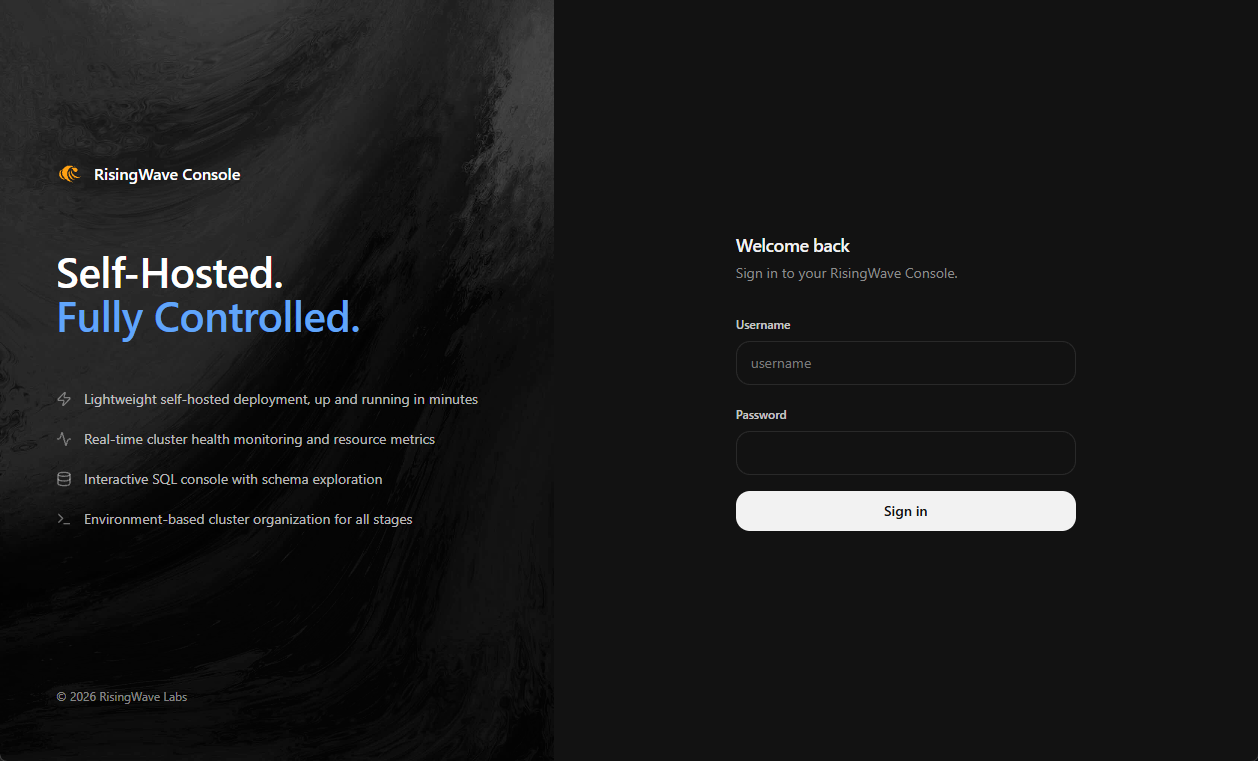
Open `http://localhost:8020` and sign in as `root` with the password you set in `RCONSOLE_ROOT_PASSWORD`.
If you prefer mounted files for secrets:
```shell theme={null}
docker run -d -p 8020:8020 --name risingwave-console \
-e RCONSOLE_ROOT_PASSWORD=your_secure_password \
-e RW_LICENSE_KEY_PATH=/etc/rconsole/license.jwt \
-v "$PWD/license.jwt:/etc/rconsole/license.jwt:ro" \
-v risingwave-console-data:/var/lib/postgresql \
risingwavelabs/risingwave-console:latest-pgbundle
```
For a throwaway local test, remove the volume and add `--rm`. Console metadata is deleted when the container is removed.
## Docker with external PostgreSQL
Use the standard image when PostgreSQL is managed outside the Console container:
```yaml theme={null}
services:
risingwave-console:
image: risingwavelabs/risingwave-console:latest
ports:
- "8020:8020"
environment:
RCONSOLE_ROOT_PASSWORD: your_secure_password
RCONSOLE_SERVER_PG_DSN: postgres://rconsole_user:rconsole_password@postgres:5432/rconsole
RW_LICENSE_KEY_PATH: /etc/rconsole/license.jwt
volumes:
- ./license.jwt:/etc/rconsole/license.jwt:ro
```
Start it with:
```shell theme={null}
docker compose up -d
```
The PostgreSQL user in `RCONSOLE_SERVER_PG_DSN` must be able to create and migrate Console metadata tables.
## Kubernetes deployment
Console provides two starter manifests:
* `deploy/kubernetes/pgbundle/console.yaml`: runs the `-pgbundle` image. This is convenient for testing, but the bundled PostgreSQL metadata is not durable across pod rescheduling.
* `deploy/kubernetes/external-pg/console.yaml`: runs the standard image with external PostgreSQL. This is the production path and also works with OpenShift restricted security settings.
Both manifests create:
* the `risingwave-console` namespace,
* a `ServiceAccount`,
* RBAC for Console operations and environment-managed resources,
* a `StatefulSet`,
* a Service that exposes Console on NodePort `30020` and Console metrics on NodePort `30090`.
### Kubernetes startup license
Store the RisingWave license key in a Kubernetes Secret:
```yaml theme={null}
apiVersion: v1
kind: Secret
metadata:
name: risingwave-console-license
namespace: risingwave-console
type: Opaque
stringData:
license.jwt:
```
Reference it from the `console` container:
```yaml theme={null}
- name: RW_LICENSE_KEY
valueFrom:
secretKeyRef:
name: risingwave-console-license
key: license.jwt
```
The external PostgreSQL manifest already includes a `risingwave-console-config` Secret for `pg-dsn`, `root-password`, and `license.jwt`. Replace the placeholder values before applying it.
### Apply a starter manifest
For a Kubernetes test deployment:
```shell theme={null}
kubectl apply -f deploy/kubernetes/pgbundle/console.yaml
```
For production or OpenShift:
```shell theme={null}
kubectl apply -f deploy/kubernetes/external-pg/console.yaml
```
Access the UI at `http://:30020`, or replace the Service with your preferred `ClusterIP`, `LoadBalancer`, or Ingress setup.
The starter manifests include RBAC that lets Console install cert-manager, the
RisingWave Operator, and environment-scoped resources. If those components are
managed by another platform team, remove the cluster-installer RBAC and use
imported resources instead.
## Binary deployment
Use the binary when you want to run Console directly on a host and manage PostgreSQL separately:
```shell theme={null}
RW_LICENSE_KEY_PATH=/etc/rconsole/license.jwt \
RCONSOLE_SERVER_PG_DSN="postgres://rconsole_user:rconsole_password@postgres.example:5432/rconsole" \
RCONSOLE_ROOT_PASSWORD="your_secure_password" \
./risingwave-console
```
Make sure the process can read the license file and reach the PostgreSQL host.
## Verify the installation
1. Check the process or container logs.
2. Open the UI:
* Docker or binary: `http://localhost:8020`, unless you changed the port.
* Kubernetes NodePort starter manifest: `http://:30020`.
3. Sign in as `root`.
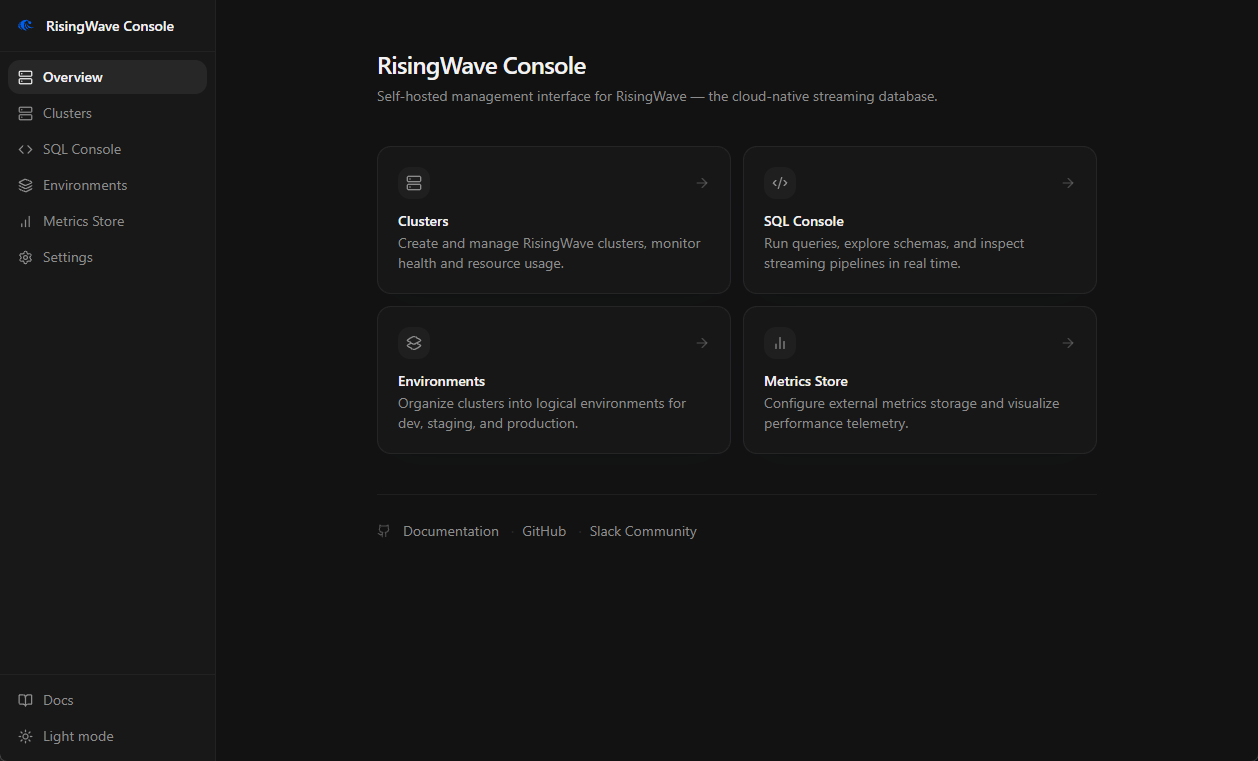
4. Confirm that the home page loads and the sidebar shows **Overview**, **Clusters**, **SQL Console**, **Environments**, **Metrics Store**, **SSO Connectors**, **Users**, and **Settings**.
 ## Troubleshooting startup
| Symptom | Check |
| -------------------------------------------------------- | ------------------------------------------------------------------------------------------------------------- |
| Console exits with a missing license error | Set `RW_LICENSE_KEY` or `RW_LICENSE_KEY_PATH`. If using a file, confirm the path inside the container or pod. |
| Console reports that the license does not enable premium | Use a signed RisingWave license key with the `premium` feature enabled. |
| PostgreSQL connection fails | Verify `RCONSOLE_SERVER_PG_DSN`, network reachability, TLS requirements, and database user permissions. |
| Port `8020` is already in use | Change the host port mapping or set `RCONSOLE_SERVER_PORT`. |
| Kubernetes pod starts but the UI is unreachable | Check the Service type, NodePort or Ingress configuration, and network policies. |
After installation, either [connect an existing RisingWave cluster](/web-ui/risingwave-console/connect-risingwave-clusters) or [create a Kubernetes environment](/web-ui/risingwave-console/manage-environments).
To let users sign in through your SAML, LDAP / Active Directory, or OIDC identity provider, see [Single sign-on (SSO)](/web-ui/risingwave-console/single-sign-on).
## Troubleshooting startup
| Symptom | Check |
| -------------------------------------------------------- | ------------------------------------------------------------------------------------------------------------- |
| Console exits with a missing license error | Set `RW_LICENSE_KEY` or `RW_LICENSE_KEY_PATH`. If using a file, confirm the path inside the container or pod. |
| Console reports that the license does not enable premium | Use a signed RisingWave license key with the `premium` feature enabled. |
| PostgreSQL connection fails | Verify `RCONSOLE_SERVER_PG_DSN`, network reachability, TLS requirements, and database user permissions. |
| Port `8020` is already in use | Change the host port mapping or set `RCONSOLE_SERVER_PORT`. |
| Kubernetes pod starts but the UI is unreachable | Check the Service type, NodePort or Ingress configuration, and network policies. |
After installation, either [connect an existing RisingWave cluster](/web-ui/risingwave-console/connect-risingwave-clusters) or [create a Kubernetes environment](/web-ui/risingwave-console/manage-environments).
To let users sign in through your SAML, LDAP / Active Directory, or OIDC identity provider, see [Single sign-on (SSO)](/web-ui/risingwave-console/single-sign-on).