> ## Documentation Index
> Fetch the complete documentation index at: https://docs.risingwave.com/llms.txt
> Use this file to discover all available pages before exploring further.
# Manage and monitor clusters in RisingWave Console
> Learn how to view your connected RisingWave clusters in RisingWave Console, access detailed information, and use its operational tools.
After [connecting existing clusters](/web-ui/risingwave-console/connect-risingwave-clusters) or [creating managed clusters in an environment](/web-ui/risingwave-console/manage-environments), you can use Console to view cluster status and run operational tools from the **Cluster Details** page.
## The clusters page
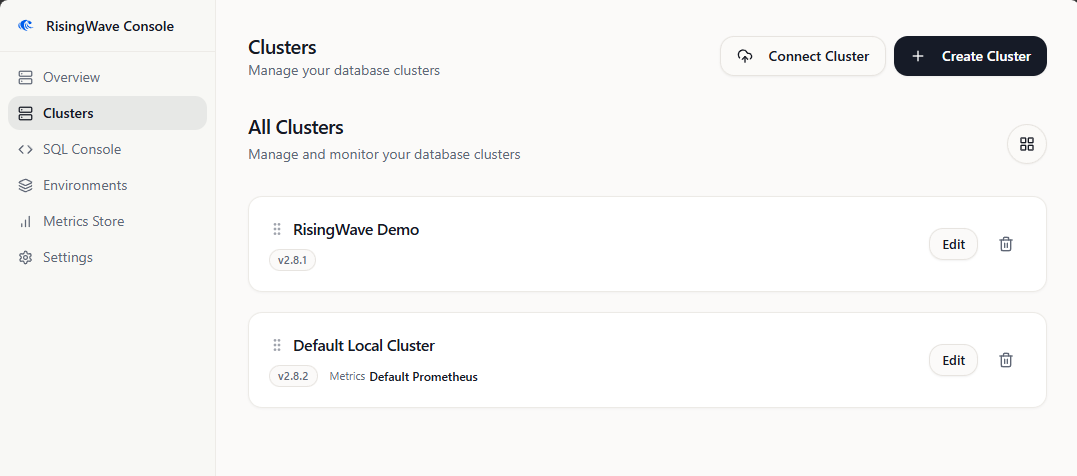 This page lists RisingWave clusters known to Console. For each cluster, you can see its name, status, endpoint details, and available actions.
Clusters can be:
* **Imported clusters**: existing RisingWave clusters registered with Console. Deleting the record only removes it from Console.
* **Managed clusters**: Kubernetes clusters created by Console inside an environment. Console can update their component specs, image tags, and database license key because it owns the RisingWave custom resource.
Clicking **Manage** on a cluster panel navigates you to its dedicated **Cluster Details** page.
## The cluster details page
This page provides an in-depth view and operational tools for the selected RisingWave cluster.
This page lists RisingWave clusters known to Console. For each cluster, you can see its name, status, endpoint details, and available actions.
Clusters can be:
* **Imported clusters**: existing RisingWave clusters registered with Console. Deleting the record only removes it from Console.
* **Managed clusters**: Kubernetes clusters created by Console inside an environment. Console can update their component specs, image tags, and database license key because it owns the RisingWave custom resource.
Clicking **Manage** on a cluster panel navigates you to its dedicated **Cluster Details** page.
## The cluster details page
This page provides an in-depth view and operational tools for the selected RisingWave cluster.
 ### Cluster information panel
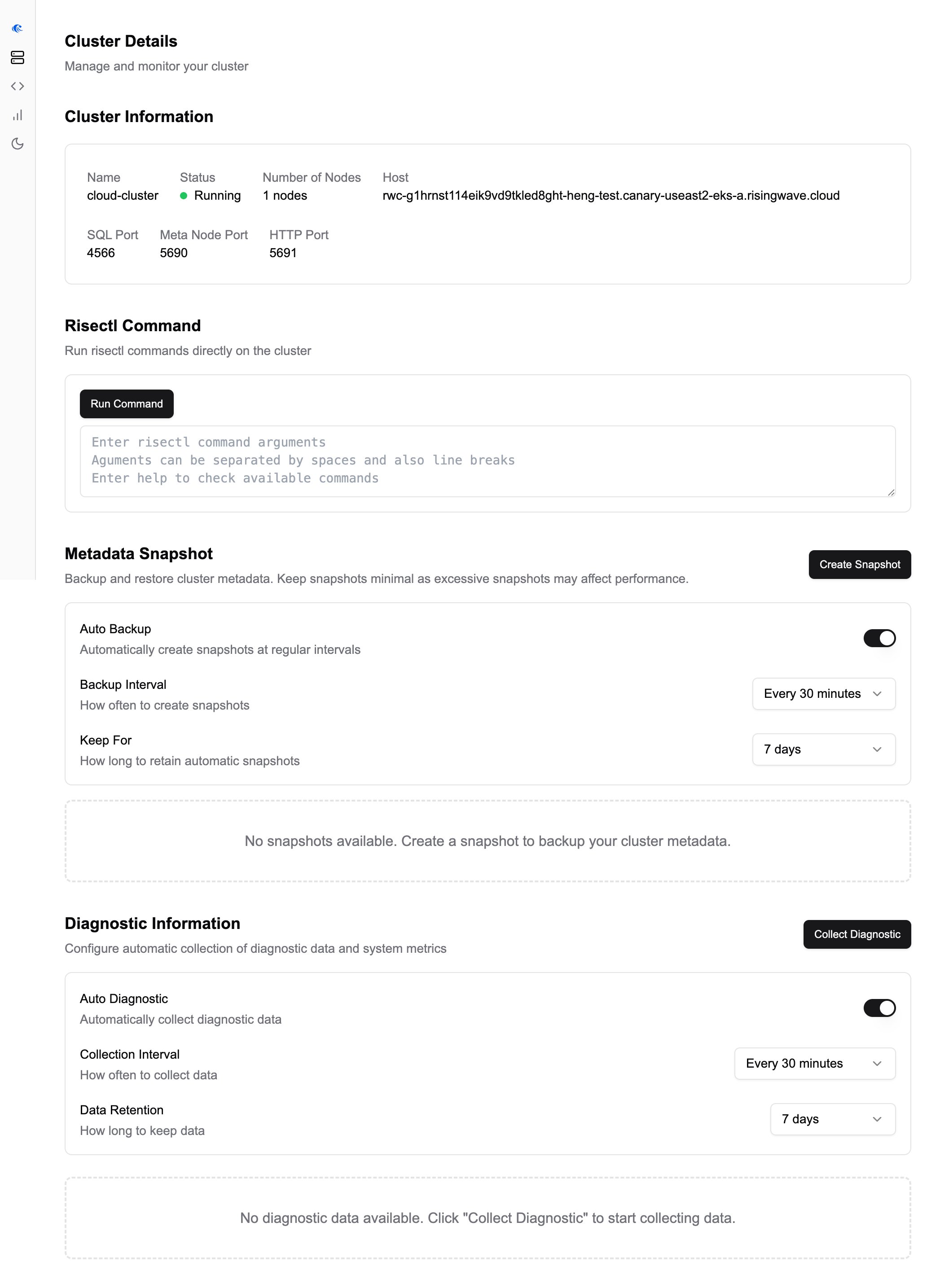
This section displays a summary of the cluster's connection information and its reported status, including: **Name**, **Status**, **Number of Nodes**, **Host**, and configured ports (SQL, Meta Node, HTTP).
### Executing `risectl` commands
RisingWave Console provides an interface to run `risectl` (RisingWave's command-line control utility) commands directly on the selected cluster.
* How to use: In the **Risectl Command** section, enter the arguments for your `risectl` command (for example, `meta-node list`) into the text area and click **Run Command**. The base `risectl` command is implied.
* Output: The command's output is displayed within the UI.
* Purpose: Useful for various administrative and diagnostic tasks supported by `risectl`.
* Note on `RCONSOLE_RISECTLDIR`: Console stores or reads `risectl` binaries from this directory. In air-gapped deployments, mount the required `risectl` versions in advance or use an air-gap Console image that includes them.
### Updating managed cluster license keys
For managed clusters, Console can update or clear the RisingWave database license key. This is the same signed license key used for Console enterprise access. The key is stored in a Kubernetes Secret and referenced by the RisingWave custom resource. Use this when a managed database cluster needs access to RisingWave premium features or when a license is renewed.
For the full configuration details for Console startup and managed RisingWave clusters, see [Manage license keys](/web-ui/risingwave-console/license-management).
### Managing metadata snapshots
RisingWave Console facilitates the management of RisingWave cluster metadata snapshots, which are important for backup and recovery.
* Manual snapshots: The **Create Snapshot** button in the **Metadata Snapshot** section triggers snapshot creation on the RisingWave cluster.
* Automated backups:
* You can enable **Auto Backup** and configure the **Backup Interval** (for example, "Every 30 minutes") and how long snapshots are **Keep For** (for example, "7 days").
* Viewing snapshots: The UI indicates if snapshots are available.
*(Note: RisingWave Console helps create these snapshots. The restoration process typically follows standard RisingWave procedures.)*
### Collecting diagnostic information
For advanced troubleshooting, RisingWave Console can assist in collecting diagnostic data from your RisingWave cluster.
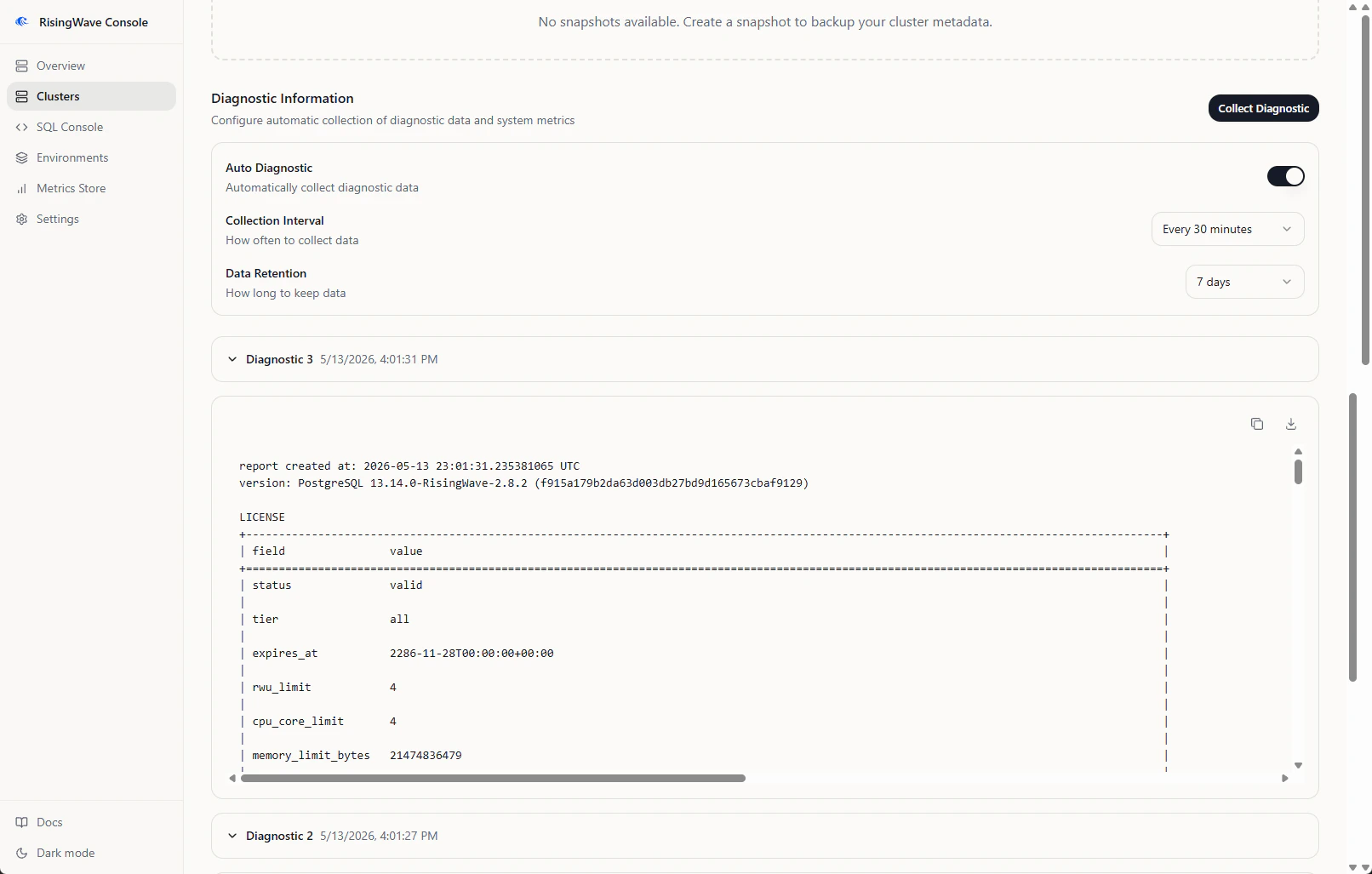
* Manual collection: Use the **Collect Diagnostic** button in the **Diagnostic Information** section.
* Automated collection:
* Enable **Auto Diagnostic** and configure the **Collection Interval** and **Data Retention** period.
* Accessing data: The UI shows diagnostic collection status and available diagnostic data.
### Cluster information panel
This section displays a summary of the cluster's connection information and its reported status, including: **Name**, **Status**, **Number of Nodes**, **Host**, and configured ports (SQL, Meta Node, HTTP).
### Executing `risectl` commands
RisingWave Console provides an interface to run `risectl` (RisingWave's command-line control utility) commands directly on the selected cluster.
* How to use: In the **Risectl Command** section, enter the arguments for your `risectl` command (for example, `meta-node list`) into the text area and click **Run Command**. The base `risectl` command is implied.
* Output: The command's output is displayed within the UI.
* Purpose: Useful for various administrative and diagnostic tasks supported by `risectl`.
* Note on `RCONSOLE_RISECTLDIR`: Console stores or reads `risectl` binaries from this directory. In air-gapped deployments, mount the required `risectl` versions in advance or use an air-gap Console image that includes them.
### Updating managed cluster license keys
For managed clusters, Console can update or clear the RisingWave database license key. This is the same signed license key used for Console enterprise access. The key is stored in a Kubernetes Secret and referenced by the RisingWave custom resource. Use this when a managed database cluster needs access to RisingWave premium features or when a license is renewed.
For the full configuration details for Console startup and managed RisingWave clusters, see [Manage license keys](/web-ui/risingwave-console/license-management).
### Managing metadata snapshots
RisingWave Console facilitates the management of RisingWave cluster metadata snapshots, which are important for backup and recovery.
* Manual snapshots: The **Create Snapshot** button in the **Metadata Snapshot** section triggers snapshot creation on the RisingWave cluster.
* Automated backups:
* You can enable **Auto Backup** and configure the **Backup Interval** (for example, "Every 30 minutes") and how long snapshots are **Keep For** (for example, "7 days").
* Viewing snapshots: The UI indicates if snapshots are available.
*(Note: RisingWave Console helps create these snapshots. The restoration process typically follows standard RisingWave procedures.)*
### Collecting diagnostic information
For advanced troubleshooting, RisingWave Console can assist in collecting diagnostic data from your RisingWave cluster.
* Manual collection: Use the **Collect Diagnostic** button in the **Diagnostic Information** section.
* Automated collection:
* Enable **Auto Diagnostic** and configure the **Collection Interval** and **Data Retention** period.
* Accessing data: The UI shows diagnostic collection status and available diagnostic data.
 These features on the **Cluster Details** page offer convenient access to important operational tasks for your RisingWave clusters.