> ## Documentation Index
> Fetch the complete documentation index at: https://docs.risingwave.com/llms.txt
> Use this file to discover all available pages before exploring further.
# Configure metrics stores
> Register Prometheus-compatible metrics stores in RisingWave Console and export metrics for offline analysis.
Metrics stores let Console query and visualize RisingWave metrics. Console supports Prometheus-compatible endpoints, including Prometheus and VictoriaMetrics.
Managed environments can install VictoriaMetrics automatically. For imported clusters, add an existing metrics store and attach it to the cluster connection.
## Add a metrics store
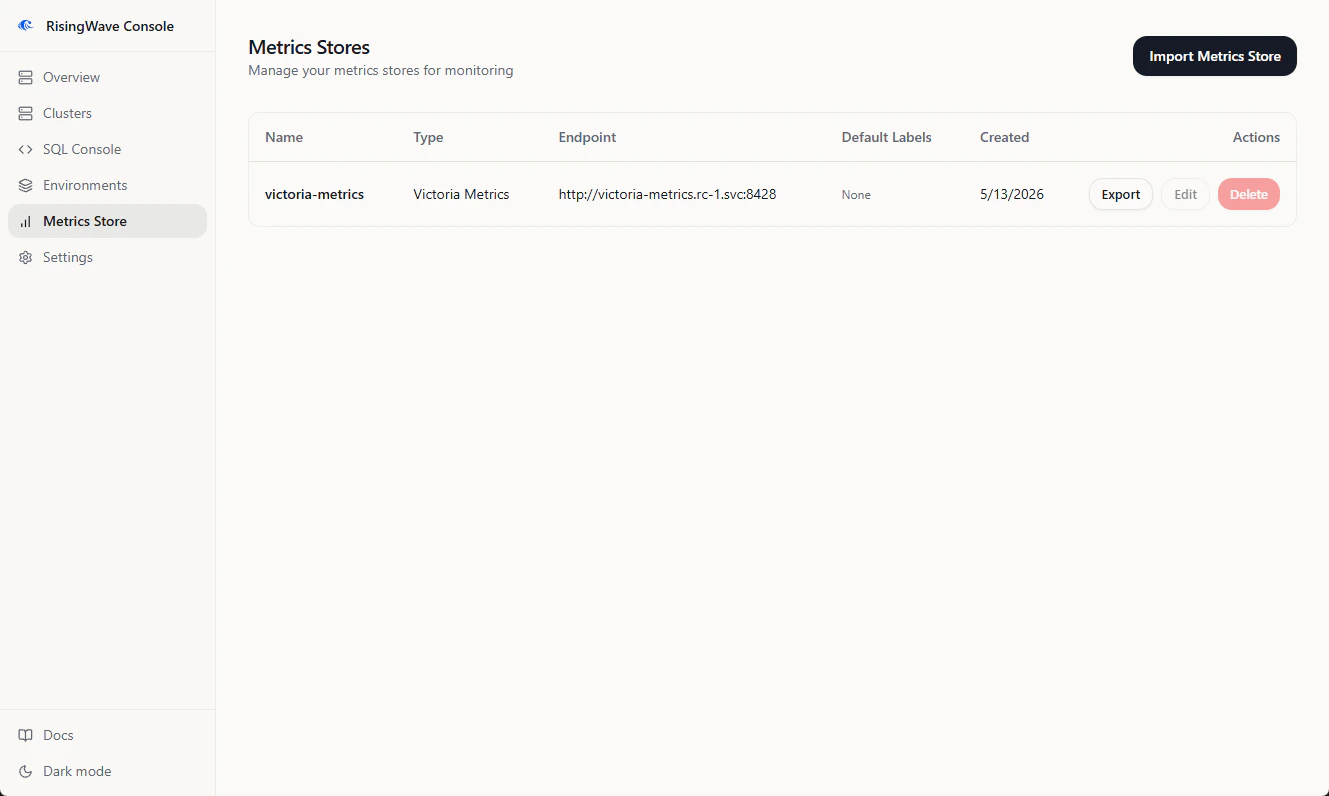
1. Open **Metrics Store** from the sidebar.
2. Click **Add**.
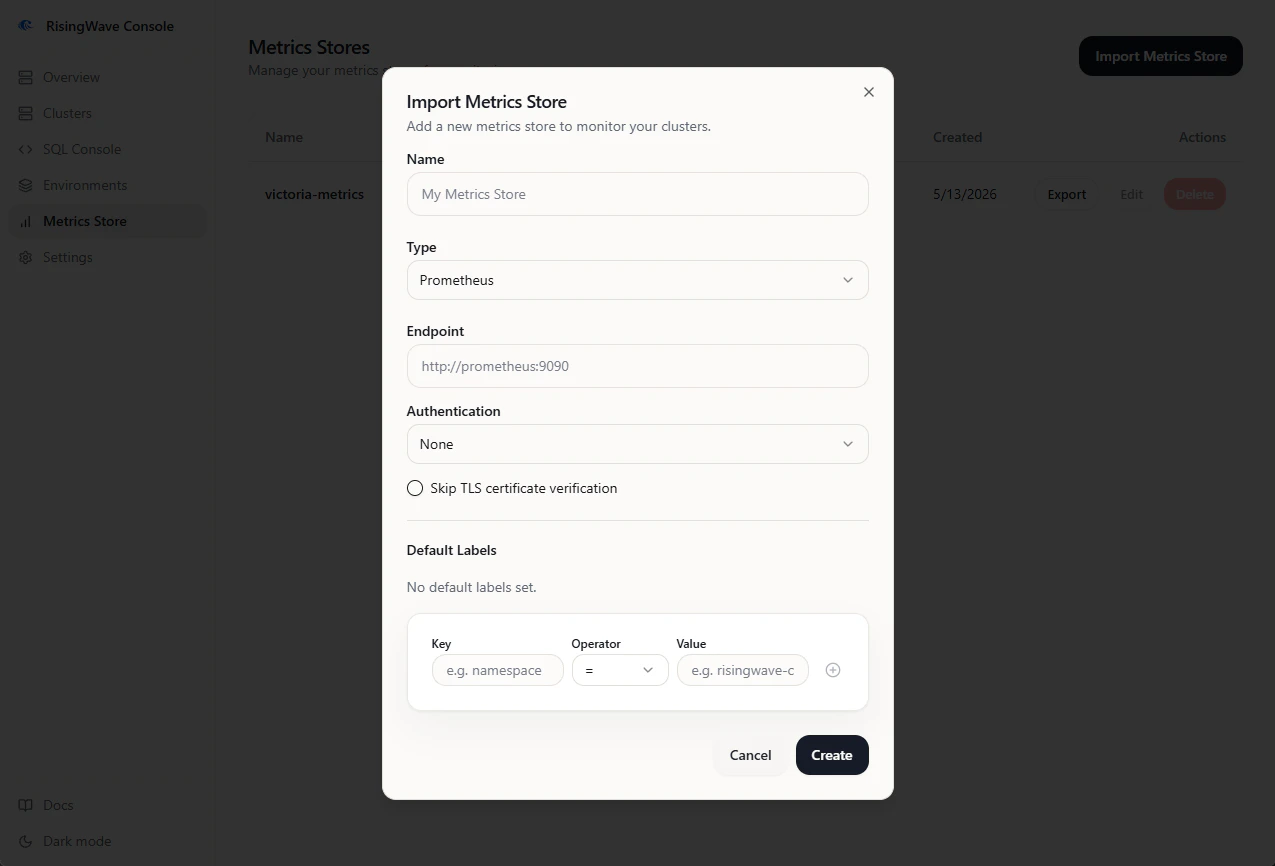
3. Enter a name.
4. Select the metrics store type.
5. Enter the endpoint URL.
6. Add any default labels needed to scope queries, such as a Kubernetes namespace label.
7. Save the store.
After saving, edit a cluster connection and select the metrics store. Metrics charts remain empty if the cluster has no metrics store attached.
 ## Managed metrics stores
When an environment installs VictoriaMetrics, Console treats that metrics store as managed. Managed metrics stores are owned by the environment lifecycle and may not allow the same edit or delete actions as imported metrics stores.
## Export metrics
Console can export metrics from a metrics store as a ZIP archive for offline analysis or support handoff.
1. Open **Metrics Store**.
2. Find the store.
3. Click **Export**.
4. Set **Start Time** and **End Time**. The UI accepts browser-local time and sends the request in UTC.
5. Select **Step**. Smaller steps produce larger archives.
6. Enter a PromQL selector, such as:
```text theme={null}
{__name__=~".+"}
```
or:
```text theme={null}
{namespace="risingwave-prod"}
```
7. Keep gzip compression enabled unless your downstream tooling cannot read compressed output.
8. Click **Download** and keep the tab open until the export finishes.
The downloaded file is named `metrics.zip`.
## Managed metrics stores
When an environment installs VictoriaMetrics, Console treats that metrics store as managed. Managed metrics stores are owned by the environment lifecycle and may not allow the same edit or delete actions as imported metrics stores.
## Export metrics
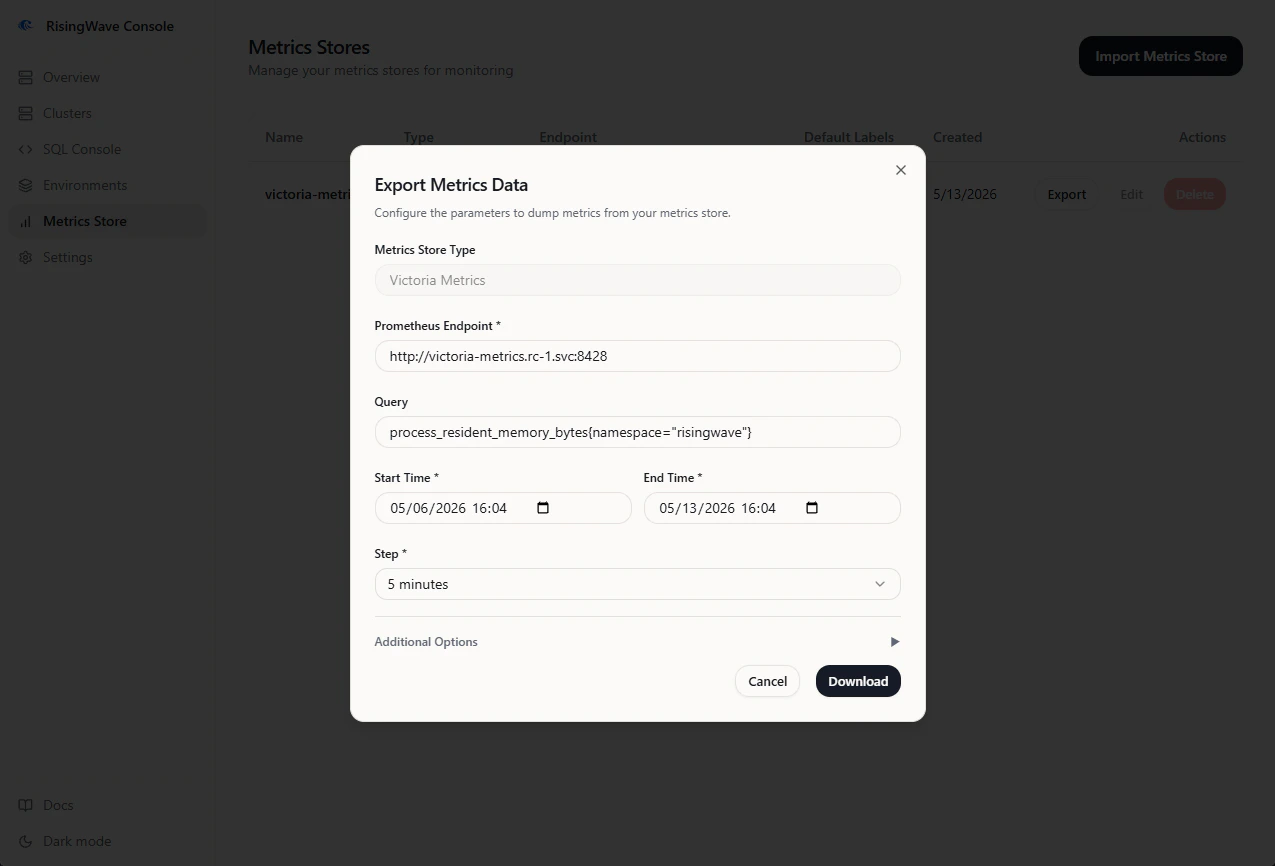
Console can export metrics from a metrics store as a ZIP archive for offline analysis or support handoff.
1. Open **Metrics Store**.
2. Find the store.
3. Click **Export**.
4. Set **Start Time** and **End Time**. The UI accepts browser-local time and sends the request in UTC.
5. Select **Step**. Smaller steps produce larger archives.
6. Enter a PromQL selector, such as:
```text theme={null}
{__name__=~".+"}
```
or:
```text theme={null}
{namespace="risingwave-prod"}
```
7. Keep gzip compression enabled unless your downstream tooling cannot read compressed output.
8. Click **Download** and keep the tab open until the export finishes.
The downloaded file is named `metrics.zip`.
 ## Troubleshooting
| Symptom | Check |
| --------------------------------------- | --------------------------------------------------------------------------------------------- |
| Metrics charts are empty | Confirm the cluster has a metrics store selected and the default labels match emitted series. |
| Export times out | Narrow the time range, increase the step, split into more parts, or reduce the memory ratio. |
| Export archive is empty | The query matched no series in the selected time range. |
| Managed metrics store cannot be deleted | It is owned by an environment. Delete or update the environment component instead. |
## Troubleshooting
| Symptom | Check |
| --------------------------------------- | --------------------------------------------------------------------------------------------- |
| Metrics charts are empty | Confirm the cluster has a metrics store selected and the default labels match emitted series. |
| Export times out | Narrow the time range, increase the step, split into more parts, or reduce the memory ratio. |
| Export archive is empty | The query matched no series in the selected time range. |
| Managed metrics store cannot be deleted | It is owned by an environment. Delete or update the environment component instead. |