

risectl, snapshots, and diagnostics.
This flow registers a cluster connection. It does not create a new RisingWave cluster. To let Console provision a managed cluster on Kubernetes, use Manage Kubernetes environments.
Prerequisites
Console must be able to reach three RisingWave endpoints:
If the cluster runs in Kubernetes, use Service DNS names that resolve from the Console pod. For a Service in another namespace, use a full name such as
risingwave-frontend.risingwave.svc.cluster.local:4566.
Add a cluster connection
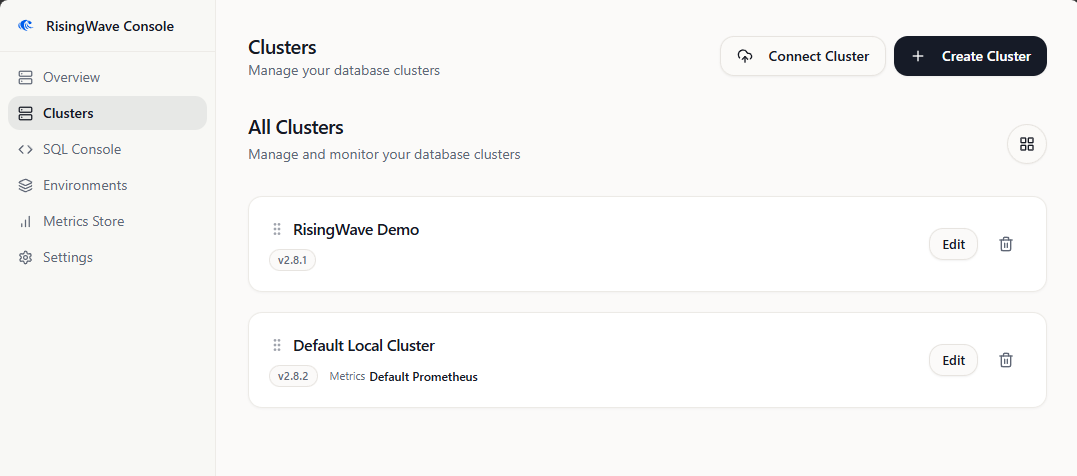
- Open Clusters from the sidebar.
- Click Import or Connect Cluster. The cluster connection form opens.
-
Fill in the cluster details:
- Name: Provide a unique, user-friendly name for this RisingWave instance as it will appear within RisingWave Console (for example,
Production RW-East,Staging Cluster,My Local Dev RW). - SQL Endpoint: Enter the frontend endpoint, such as
rw.example.com:4566orrisingwave-frontend.risingwave.svc.cluster.local:4566. - Meta RPC Endpoint: Enter the Meta RPC endpoint, such as
http://rw.example.com:5690. - Meta HTTP Endpoint: Enter the Meta HTTP endpoint, such as
http://rw.example.com:5691. - Version: Choose the RisingWave version. Console uses this to select compatible operational behavior such as
risectlversion handling. - Metrics Store: Optionally select a configured metrics store. Leave it empty if you do not have Prometheus or VictoriaMetrics available yet.
- Name: Provide a unique, user-friendly name for this RisingWave instance as it will appear within RisingWave Console (for example,
-
Test the connection: Click the Test Connection button. RisingWave Console will attempt to connect to your RisingWave cluster using the details provided.
- If successful, you should see a confirmation message.
- If it fails, double-check all entered details, ensure your RisingWave cluster is running and accessible from the RisingWave Console server over the network (including any firewalls), and verify the ports are correct.
- Save the cluster connection: If the connection test is successful, click Connect Cluster or Create Cluster, depending on the UI label in your Console version.
Endpoint examples
Editing an existing cluster connection
If you need to update the details for a previously added cluster (for example, if the host or port changes):- Navigate to the Clusters page.
- Locate the cluster you wish to edit in the list.
- Click the Edit button associated with that cluster.
- The Edit Cluster window will appear, pre-filled with the current settings.
- Modify the necessary details.
- It’s recommended to use the Test Connection button again after making changes.
- Click Save Changes to apply your updates.
Deleting a cluster connection from RisingWave Console
To remove a RisingWave cluster connection from RisingWave Console:- Navigate to the Clusters page.
- Locate the cluster you wish to remove.
- Click the Delete icon associated with that cluster.
- Confirm the deletion when prompted.
Deleting a cluster connection from RisingWave Console only removes its
configuration from RisingWave Console. It does not affect, stop, or delete
your actual RisingWave cluster.