

The clusters page
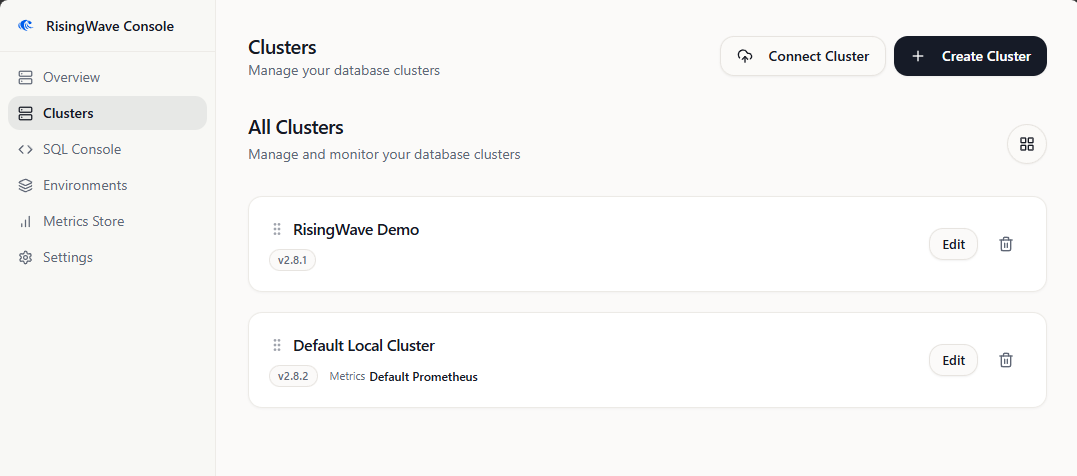
Observe an attached CR
Observation requires a trusted target andget on the single named RisingWave CR. It does not require Pod, Secret, Event, PVC, workload, or namespace-wide list access. See incremental Kubernetes permissions.
For an attached CR, the cluster page can show Operator-reported information, including:
- Running and Target state,
- configured image and reported version,
- component groups and their replicas and CPU/memory settings,
- the storage and TLS summaries exposed by v0.8.0.
View read-only YAML
Select View YAML to open a read-only Monaco view with folding, search, line numbers, and copy support. It uses the same named-CRget grant and does not read Pods or Secrets.
The view is an allowlisted projection of supported CR fields. It is not the complete raw CR, an export or restore backup, or a manifest to pass to kubectl apply. Sensitive and arbitrary content is omitted. Console v0.8.0 does not add arbitrary YAML editing, Secret inspection, namespace or Operator administration, or a Pod/PVC console.
Delegate CR operations
Delegated changes require all of the following:- the named-CR observer grant remains applied,
patchis approved for that same named CR,getis approved for the exact SQL and Meta Services,- the CR is attached and matches its saved UID,
- the Console user is an authorized administrator.
service.namespace.svc or service.namespace.svc.cluster.local; a short Service name is not accepted for delegated identity verification, even when Console and RisingWave share a namespace. Configured SQL TLS is supported. Remote targets, external proxy or load-balancer endpoint mappings, and HTTPS Meta endpoints are not supported for delegated writes in this release.
These profiles do not need Operator, CRD, cert-manager, Secret, or workload lifecycle privileges. The existing RisingWave Operator reconciles the edited CR.
Common operation sequence
For each supported change:- Select the operation and the actual component group.
- Edit only the requested value.
- Review the before-and-after preview.
- Confirm the operation.
- Inspect the operation result and Operator progress.
- Verify the actual service and application behavior independently.
Scale a component group
For example, select a frontend or compute group currently configured with1 replica, set it to 2, preview the change, and confirm it. Choose the real group name shown in your CR. Topology suitability, including Meta scaling decisions, remains the administrator’s responsibility.
Change one CPU or memory field
For example, change one compute group’s CPU request from500m to 750m. Console preserves unrelated group and template fields. A request is scheduler reservation, while a limit is an enforcement ceiling; neither is measured utilization. Changing a request or limit can cause an Operator-driven Pod rollout.
Change the RisingWave image
As a procedural example, changerisingwavelabs/risingwave:v2.8.2 to risingwavelabs/risingwave:v2.8.3, preview, and confirm. This example is not a blanket compatibility or production-upgrade recommendation. Select a supported upgrade path, prepare required backups, and check workload compatibility.
After rollout, verify the actual running version. Then open Clusters > Edit and explicitly synchronize Registered RisingWave version before using version-selected tools. Updating the CR image does not silently update that saved setting.
Concurrency and operation results
Console v0.8.0 uses conditional JSON Patch for delegated operations:- It checks the attached CR UID and captured
resourceVersionatomically, modifies only the selected supported field, and preserves unrelated group and template fields. - At execution, it rechecks authorization, target scope, binding and Service identity, deletion state, and operation preconditions. A successful preview is not a permanent grant.
- If any CR change occurs after preview, including a status-only
resourceVersionchange, refresh and review a new preview. Do not retry the stale request.
--force-conflicts, edit managedFields, or look for a Console force toggle.
One active operation per attached RisingWave CR prevents overlapping Console operations on that CR. An accepted Kubernetes patch is not rollout success. Console observes Operator progress and health, but SQL and Meta availability and business or streaming correctness need separate checks.
A GitOps or platform controller can change the value again later; Console does not continuously counter-write it. Coordinate the authoritative configuration source instead of broadening RBAC.
For an uncertain outcome, inspect the CR and workloads independently before any new operation. The audited manual-close action changes only the Console operation record; it does not retry, repair, or undo a Kubernetes write.
Operational tools
Run risectl
Registered RisingWave version selects the requested CLI version. Console first looks for an exact cached binary and can fall back to the highest cached patch version in the same major/minor series. When downloads are allowed, a failed exact-version download can also fall back to an available release in that series. For example, a cluster registered as v2.8.2 can use v2.8.5. This selection is not a compatibility guarantee for every CLI and database combination.
Ordinary v0.8.0 images do not preinstall risectl; air-gap images cache v2.8.5 and v3.0.1. See Air-gapped deployment for the directory layout.
Use Risectl > Check CLI to inspect the executable’s reported version. This does not verify cluster reachability, Meta health, or command compatibility. Run a permitted read-only Meta command for the end-to-end check.