In other words, Console does not use a separate product license key. It uses the same RisingWave license key, provided once to Console for startup and separately to any managed RisingWave database cluster that needs the database-side license.
Try without a license key
If you only want to try RisingWave Console without configuring a license key, usev0.5.1. On an x86-64 (amd64) computer, run:
choose_a_password with your own password. Keep the container running, open http://localhost:8020, and sign in as root with that password. To explore data, you need a running RisingWave cluster; use Clusters → Import to connect it. See Connect to your RisingWave clusters for the required endpoints.
v0.5.1 is an older evaluation version. It does not include all current Console capabilities, and some features described in this documentation may not exist or may behave differently in that version. For current supported versions, configure the signed RisingWave license key as described below.
Console startup license
Production Console builds verify the signed RisingWave license key during startup. Console exits if the key is missing, invalid, or does not include thepremium feature. Since v0.7.5, an expired but otherwise valid key lets Console start in a limited mode: read-only flows and license replacement remain available, while premium actions are blocked. Earlier licensed releases exit when the key has expired.
Set one of these environment variables:
StatefulSet:
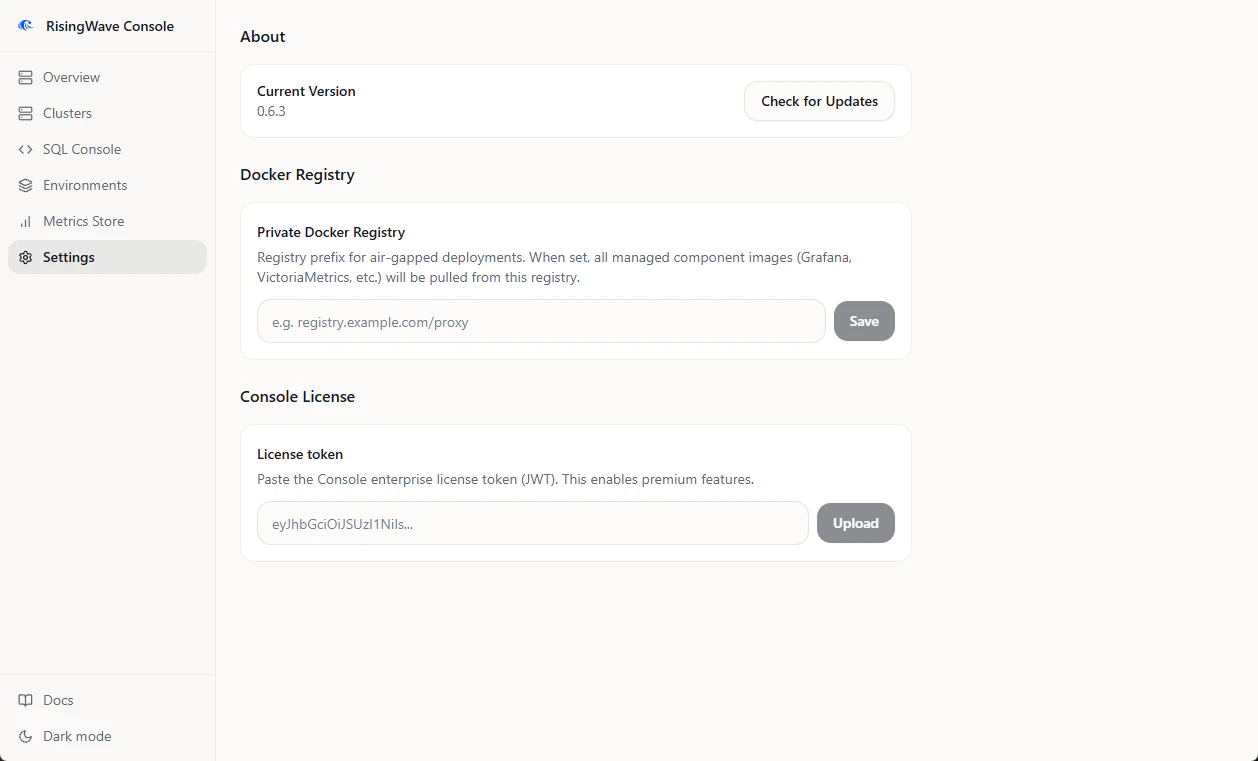
Upload a Console license in Settings
After signing in, you can upload the RisingWave license key from Settings for Console enterprise access.- Open Settings.
- Find Console License.
- Paste the signed license key.
- Click Upload.
RW_LICENSE_KEY_PATH or the Kubernetes Secret used by the Console StatefulSet.
Managed RisingWave cluster license key
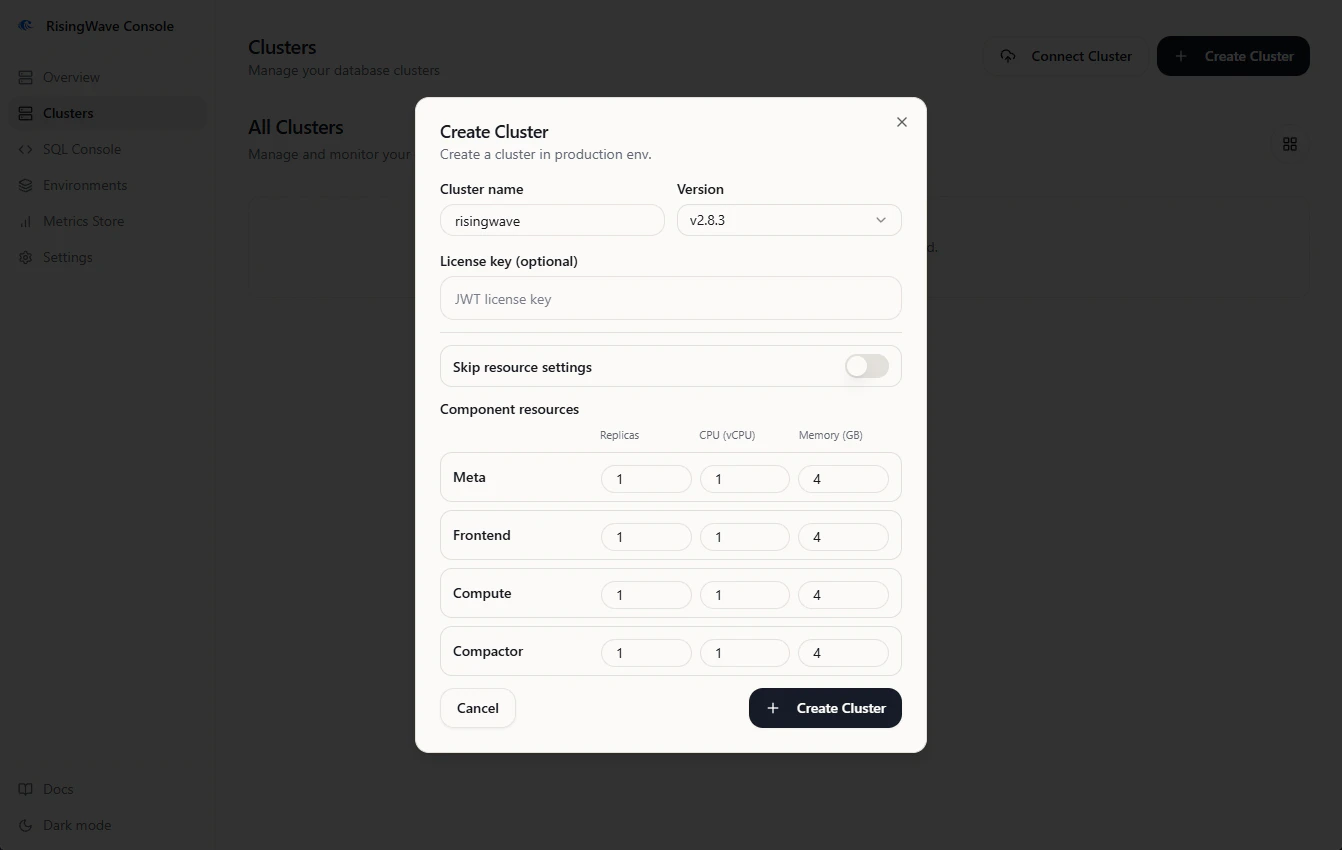
When Console creates a managed RisingWave cluster in a Kubernetes environment, you can provide the same RisingWave license key in the create-cluster form. Console stores that key in a Kubernetes Secret and references it from the RisingWave custom resource throughspec.licenseKey.
To set the key during cluster creation:
- Open Clusters.
- Click Create Cluster.
- Select a ready environment.
- Enter the cluster name and RisingWave version.
- Paste the license key in License key (optional).
- Create the cluster.
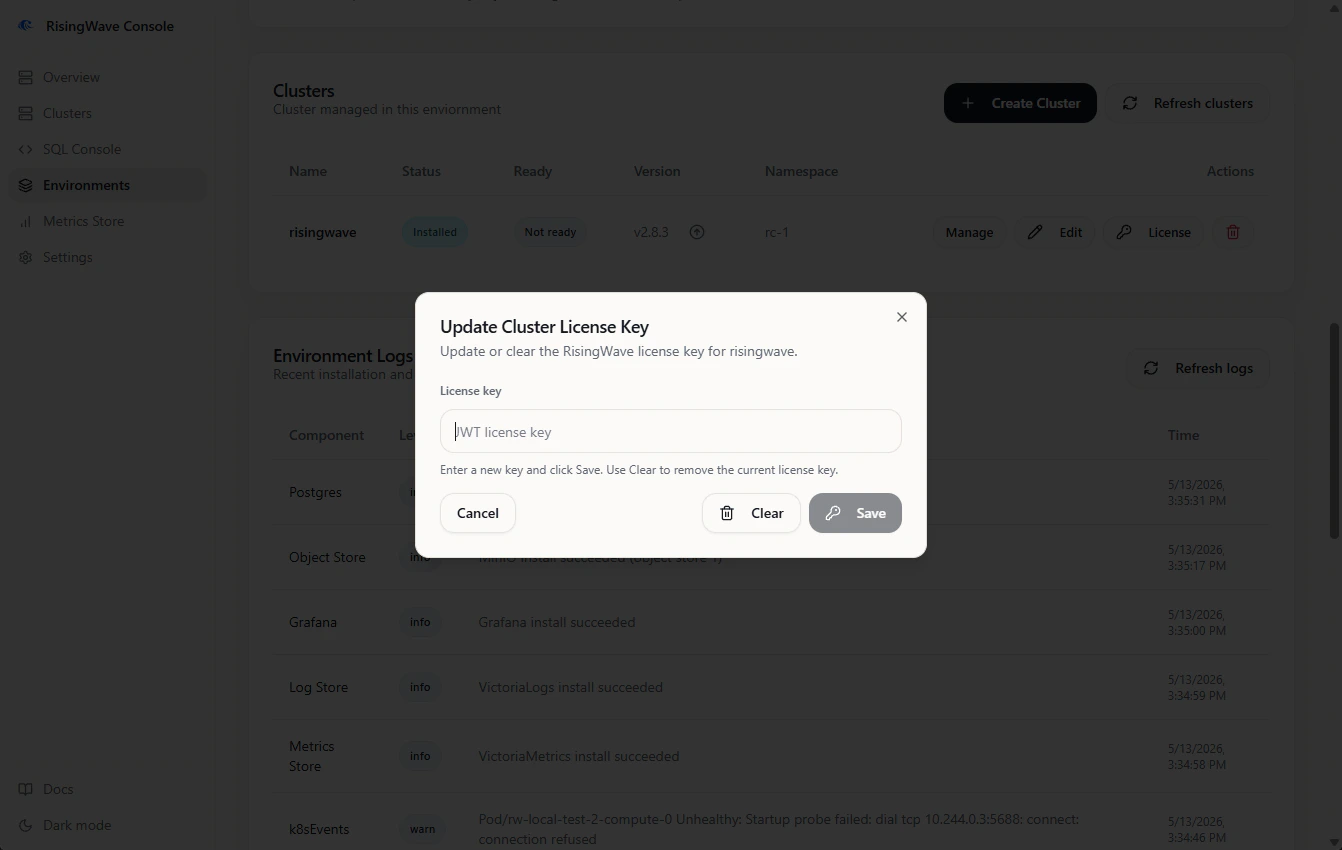
- Open Environments.
- Select the environment that owns the cluster.
- In the managed clusters area, open the license-key action for the cluster.
- Enter a new key and click Save, or click Clear to remove the current key.
spec.licenseKey reference from the RisingWave custom resource and deletes the Kubernetes Secret that held the key.