An environment is a Kubernetes workspace managed by Console. It groups the services that a RisingWave cluster needs, including object storage, metadata PostgreSQL, metrics, logs, Grafana, cert-manager, and the RisingWave Operator. Use this flow when you want Console to own the lifecycle of Kubernetes infrastructure and managed RisingWave clusters. If you already have a running RisingWave cluster and only want to operate it from Console, use Connect to your RisingWave clusters.Documentation Index
Fetch the complete documentation index at: https://docs.risingwave.com/llms.txt
Use this file to discover all available pages before exploring further.
What one-click install creates
The default environment install can create:| Component | Purpose |
|---|---|
| cert-manager | Certificate management for Kubernetes components. |
| RisingWave Operator | Manages RisingWave custom resources. |
| Object store | Stores RisingWave state. The default managed option is MinIO. |
| PostgreSQL | Metadata store for RisingWave clusters. This is separate from the Console metadata PostgreSQL. |
| Metrics store | VictoriaMetrics for cluster metrics. |
| Log store | VictoriaLogs for environment and component logs. |
| Grafana | Dashboards connected to metrics and logs. |
Prerequisites
- Console is deployed in Kubernetes with the starter RBAC or equivalent permissions.
- The Kubernetes cluster has a default StorageClass, or you know which StorageClass to use.
- The cluster has enough CPU and memory for the selected components.
- For air-gapped installs, the private Docker registry and required Helm charts are prepared before installation.
Create an environment
- Open Environments from the sidebar.
- Click Create Environment.
- Enter a display name.
- Set Storage class if you do not want to use the cluster default.
- Select the components to install. The default selection installs the complete stack.
- Click Install.
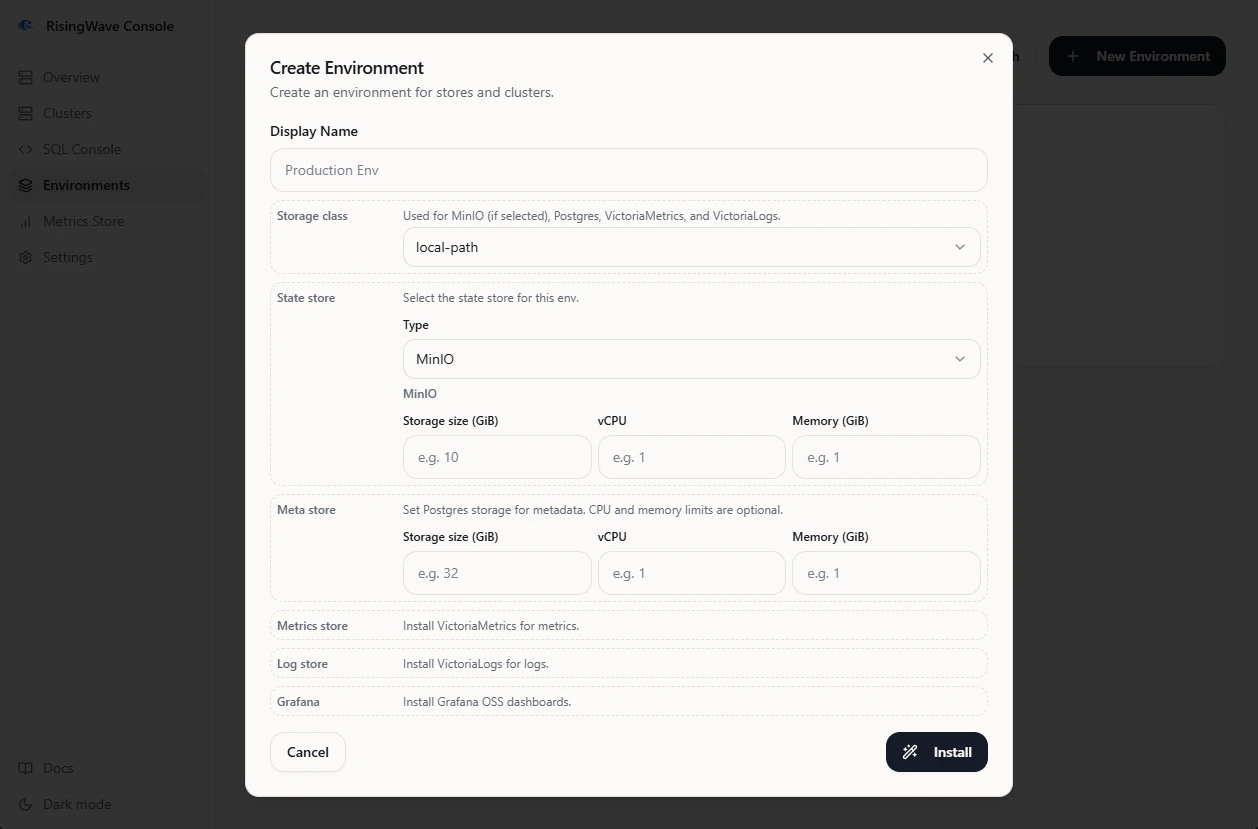
Track install progress
On the environment detail page:- Status shows each component state, such as pending, installing, ready, or failed.
- Logs shows installation logs from the underlying tasks.
- Acceptance Test runs a smoke check after the components are ready.
Create a managed cluster
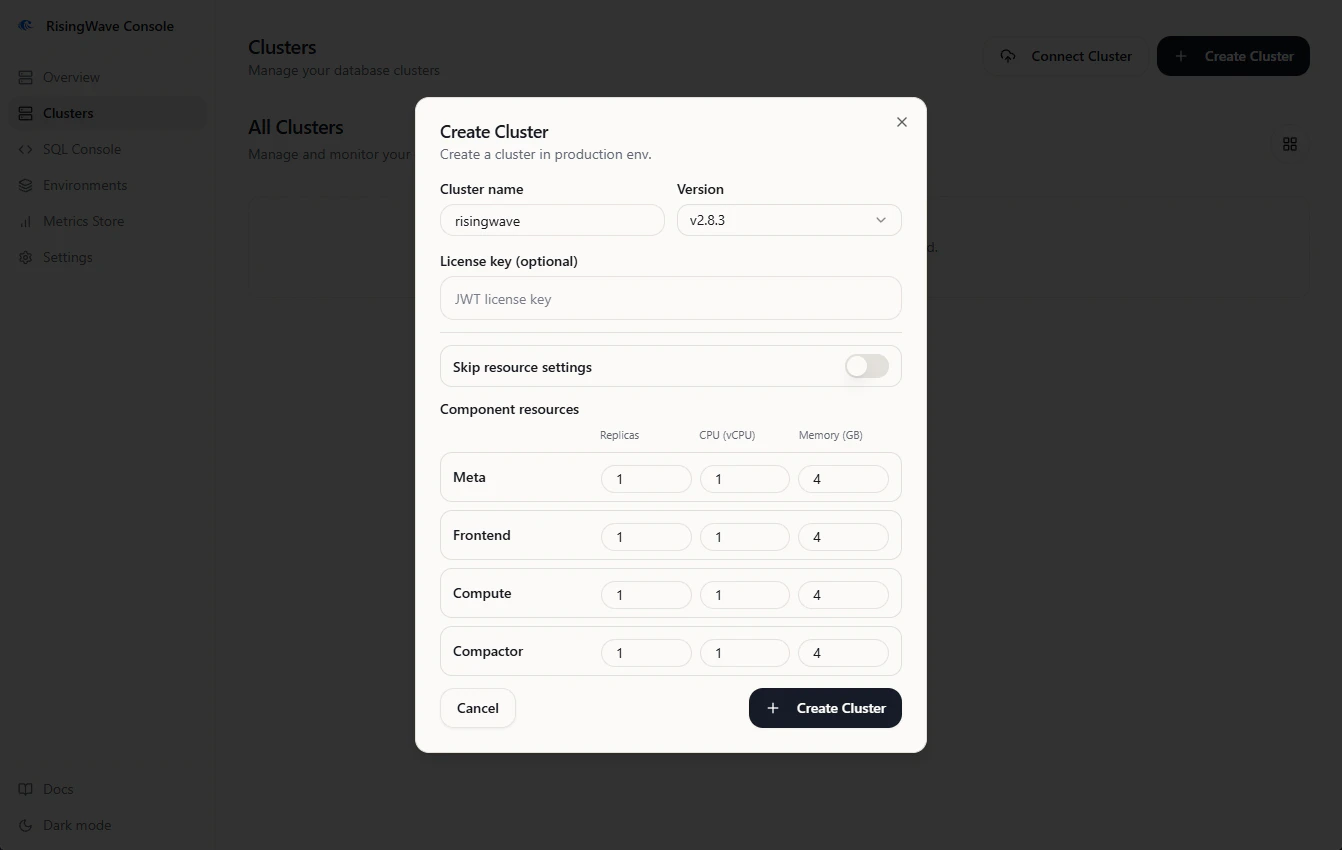
After an environment is ready:- Open Clusters and click Create Cluster, or use the create-cluster action from the environment detail page.
- Select the environment.
- Enter the cluster name.
- Select the RisingWave version.
- Optionally paste a RisingWave database license key.
- Review or adjust component resource settings.
- Click Create.
risectl, metadata snapshots, diagnostics, and metrics.
Update managed clusters
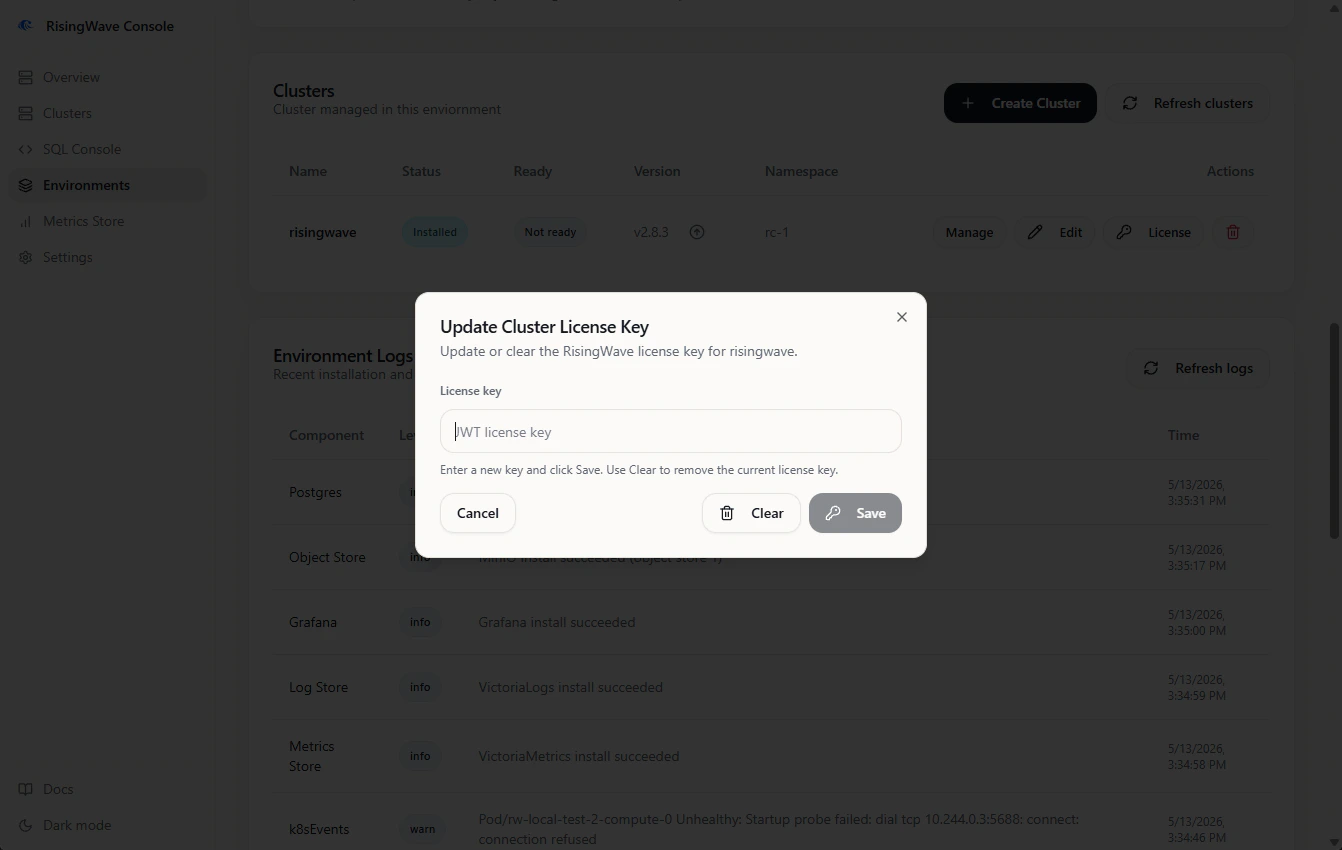
From the environment detail page, you can manage cluster operations such as:- update component resource settings,
- update the RisingWave image tag,
- update or clear the RisingWave database license key,
- delete the managed cluster.
Delete an environment
Delete managed clusters before deleting the environment. Console then uninstalls the components it installed for that environment. Imported or external services are not deleted unless they were created as managed environment resources.Common failures
| Symptom | Likely cause |
|---|---|
| Object store remains installing | Missing default StorageClass or an invalid StorageClass selection. |
| cert-manager or operator install is denied | Console is missing cluster-installer RBAC. |
| Image pulls fail in air-gapped mode | The private Docker registry setting is missing, unreachable, or missing required images. |
| Acceptance test fails on PostgreSQL | PostgreSQL storage or resources are too small for the smoke deployment. |
| Grafana install fails in air-gapped mode | Required dashboard files or images were not uploaded or mirrored. |