This guide covers webhook ingestion for managed RisingWave Cloud projects, where requests are routed through the managed rwproxy webhook endpoint.
If you are running self-hosted RisingWave (Operator/Helm/bare metal), use Ingest data from webhook.

How managed webhook routing works

In managed RisingWave Cloud, webhook requests are accepted by rwproxy over HTTPS and forwarded to your project’s frontend webhook listener.
  • Public ingress: HTTPS :443
  • Webhook path format: /webhook/<database>/<schema>/<table>
Tenant routing:
  1. Hosted projects: SNI hostname first, then tenant query parameter fallback.
  2. BYOC projects: currently use tenant query parameter (SNI is not supported).

Prerequisites

  1. A running RisingWave Cloud project.
  2. The tenant identifier of your project (for example, rwc-g1huxxxxxx-mycluster).
  3. A webhook table in your target database/schema (you can create it in the wizard).
For details on tenant identifier and project connection details, see Connection errors.
Current BYOC limitations:
  • SNI is not supported yet. Use ?tenant=<tenant identifier> in the webhook URL.
  • TLS certificate verification may fail unless verification is disabled on the sender side. For testing, you can temporarily disable TLS verification in your client (for example, use curl -k).

Hosted vs BYOC requirements

Project typeTenant routing requirementTLS note
HostedUse the webhook endpoint generated by the wizard. Hosted projects support SNI routing, with query-parameter fallback.Use standard TLS verification.
BYOCUse the webhook endpoint generated by the wizard, which includes ?tenant=<tenant identifier>. BYOC currently does not support SNI routing.TLS verification can fail in some BYOC environments. For testing, use curl -k (or client equivalent).
Use the wizard as the primary setup path so users do not need to manually construct hostnames or endpoint URLs. Wizard steps:
  1. Open your project workspace and go to Connect Your Data.
  2. Open Webhook Configuration.
  3. Select Database, Schema, and Table.
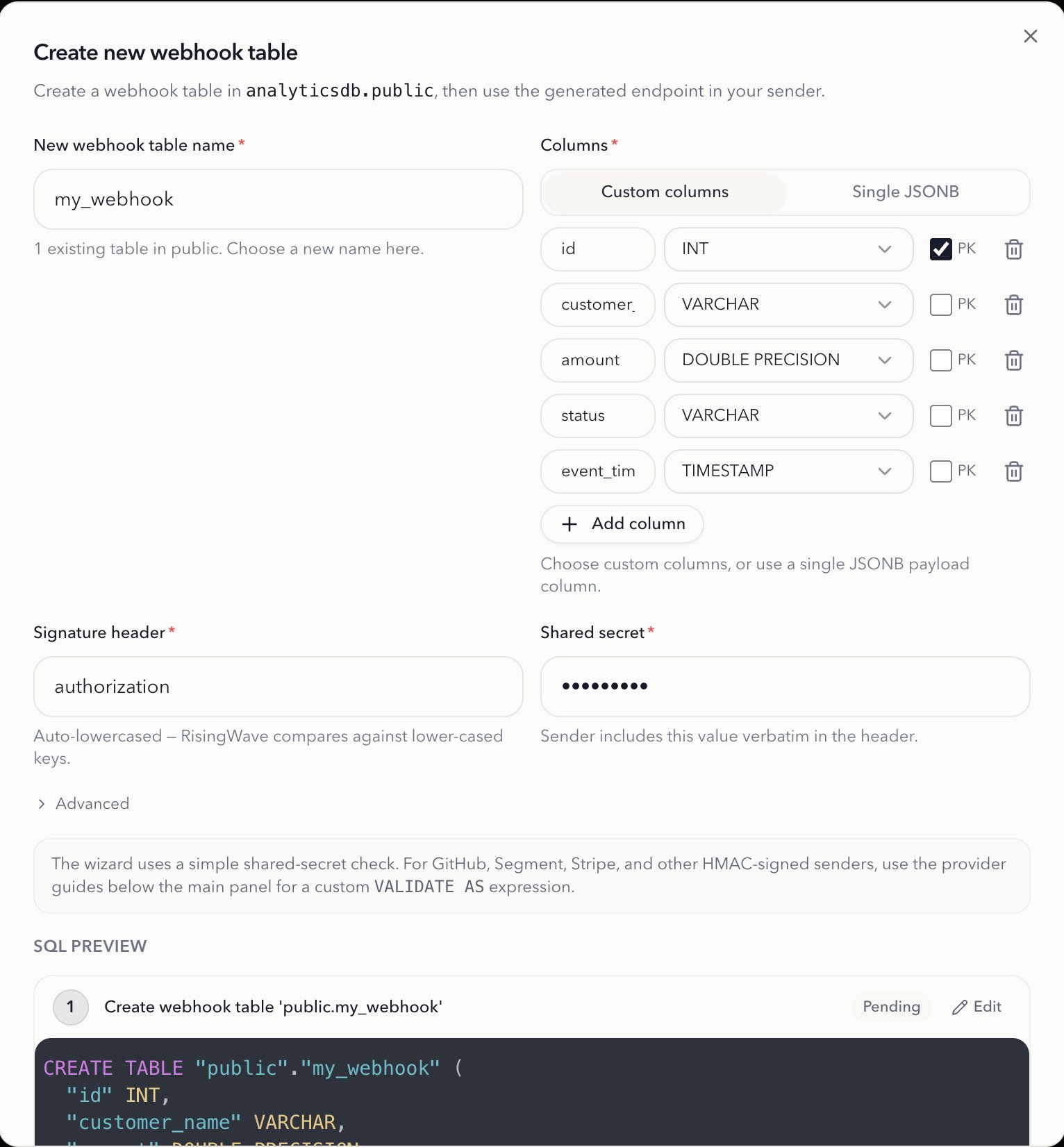
  4. (Optional) Use Create new webhook table to generate SQL, preview it, and run it.
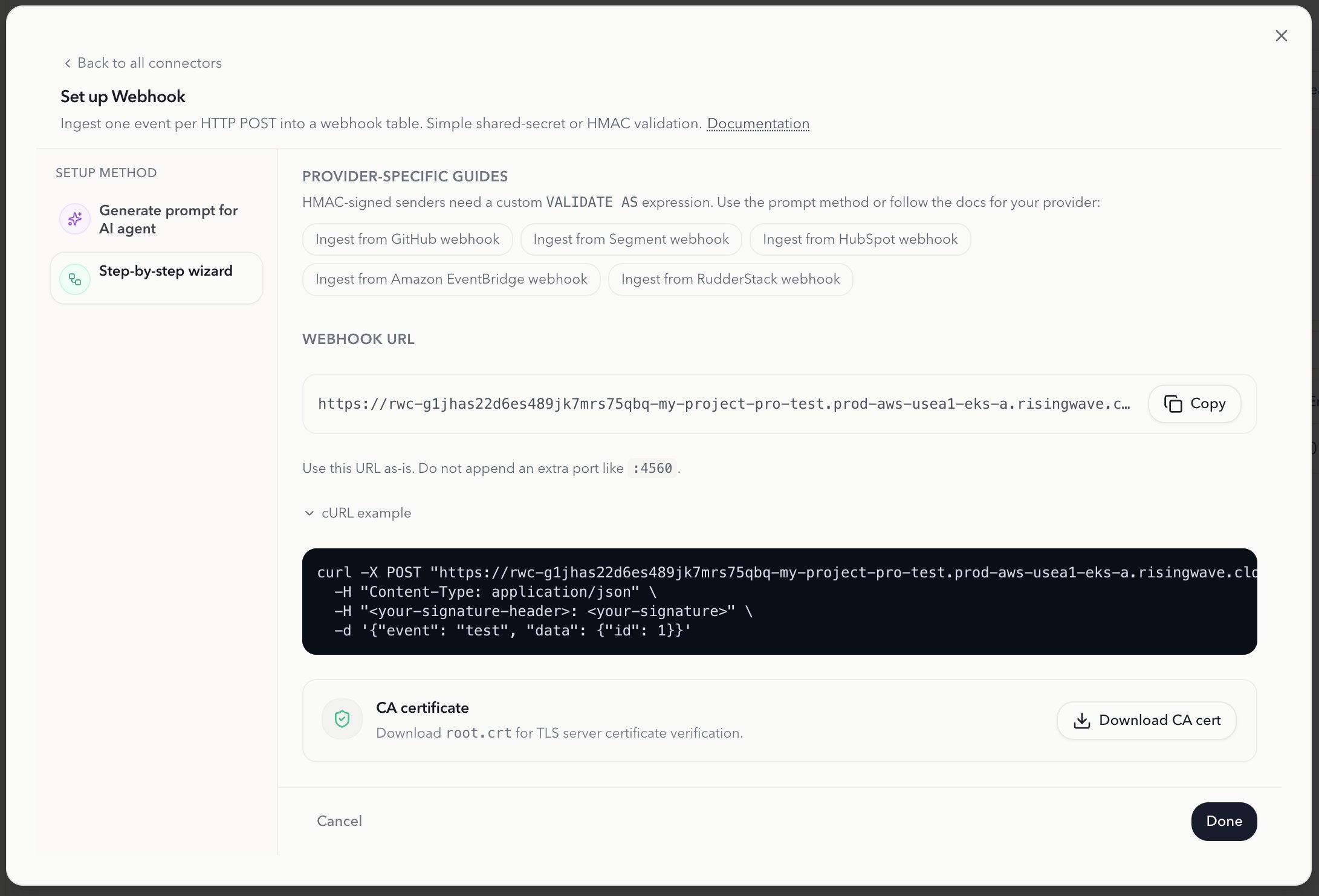
  5. Copy the generated Webhook Endpoint URL.
  6. Expand cURL Example and copy the generated command.
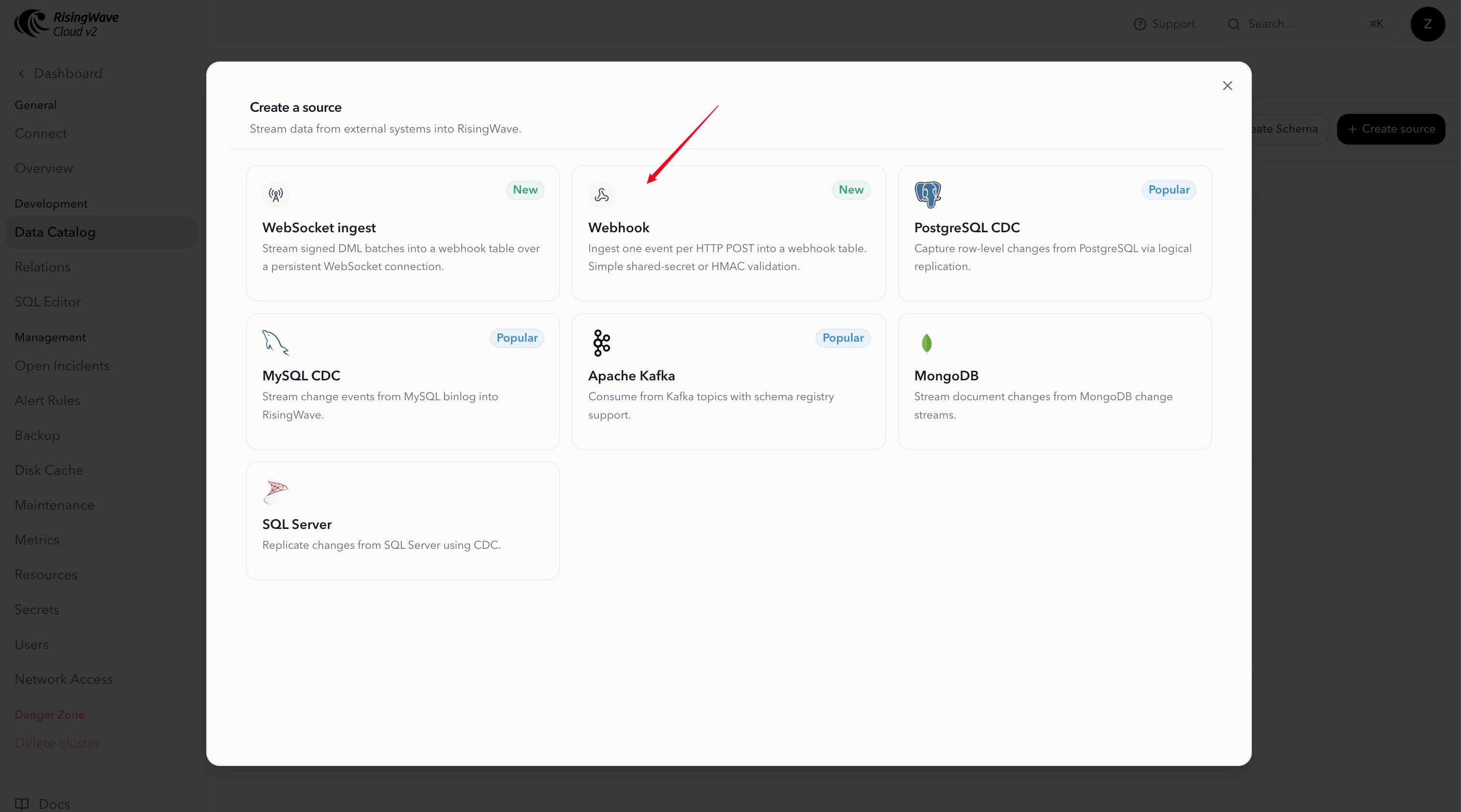
Wizard screenshots: Webhook entry in Connect page
Webhook card in the Connect Your Data page in RisingWave Cloud
Create webhook table and review generated SQL
Create webhook table wizard showing generated SQL preview
Generated endpoint URL and cURL example
RisingWave Cloud portal webhook configuration wizard showing the generated webhook endpoint URL and cURL example
Use these as reference commands. In practice, prefer the wizard-generated SQL and endpoint values. Create webhook table
CREATE TABLE wbhtable (
  data JSONB
) WITH (
  connector = 'webhook'
) VALIDATE AS secure_compare(
  headers->>'signature',
  '1'
);
For provider-specific validation examples (GitHub, Segment, HubSpot, EventBridge, RudderStack), see Webhook integrations. Hosted projects cURL example
curl -i -X POST "<webhook_endpoint_url_from_wizard>" \
  -H "Content-Type: application/json" \
  -H "signature: 1" \
  -d '{"event":"user.signup","user_id":"123"}'
BYOC projects cURL example
curl -k -i -X POST "<webhook_endpoint_url_from_wizard>" \
  -H "Content-Type: application/json" \
  -H "signature: 1" \
  -d '{"event":"user.signup","user_id":"123"}'
The webhook path must be exactly /webhook/<database>/<schema>/<table>.
Verify ingestion
SELECT * FROM wbhtable;