Overview
A maintenance window defines a recurring time slot during which RisingWave Cloud may perform automated operations on your cluster. Currently, the primary automated operation is version upgrades for clusters running deprecated RisingWave versions. When a version you are running reaches end-of-support (see release support policy), RisingWave Cloud will automatically schedule an upgrade to a supported version. The upgrade is executed only during your configured maintenance window.Default maintenance window
All clusters are assigned a default maintenance window:Configure your maintenance window
During cluster creation
The maintenance window is shown on the cluster confirmation screen before you create your cluster. Click the gear icon to open the Maintenance rules dialog and adjust the settings.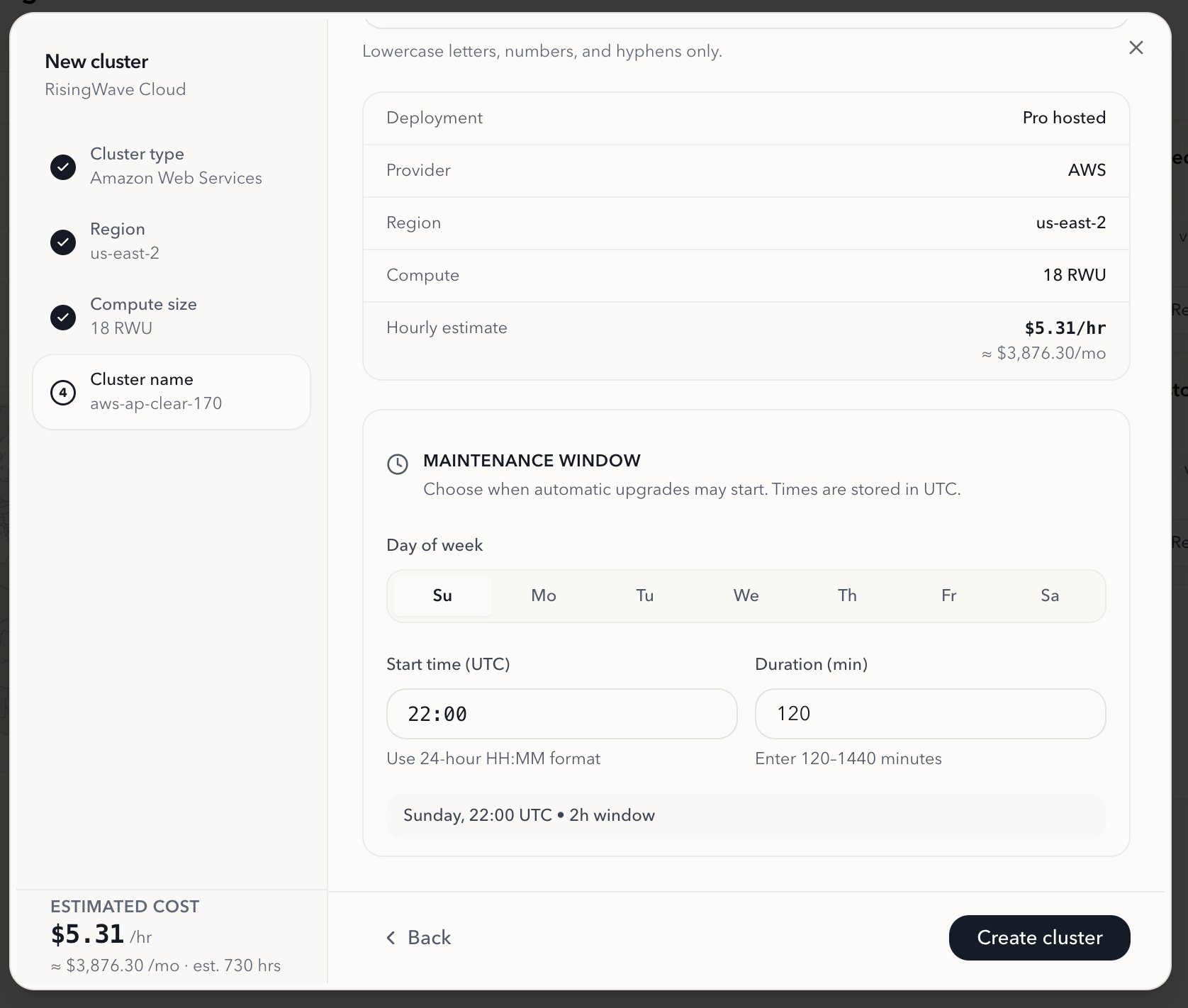
From an existing cluster
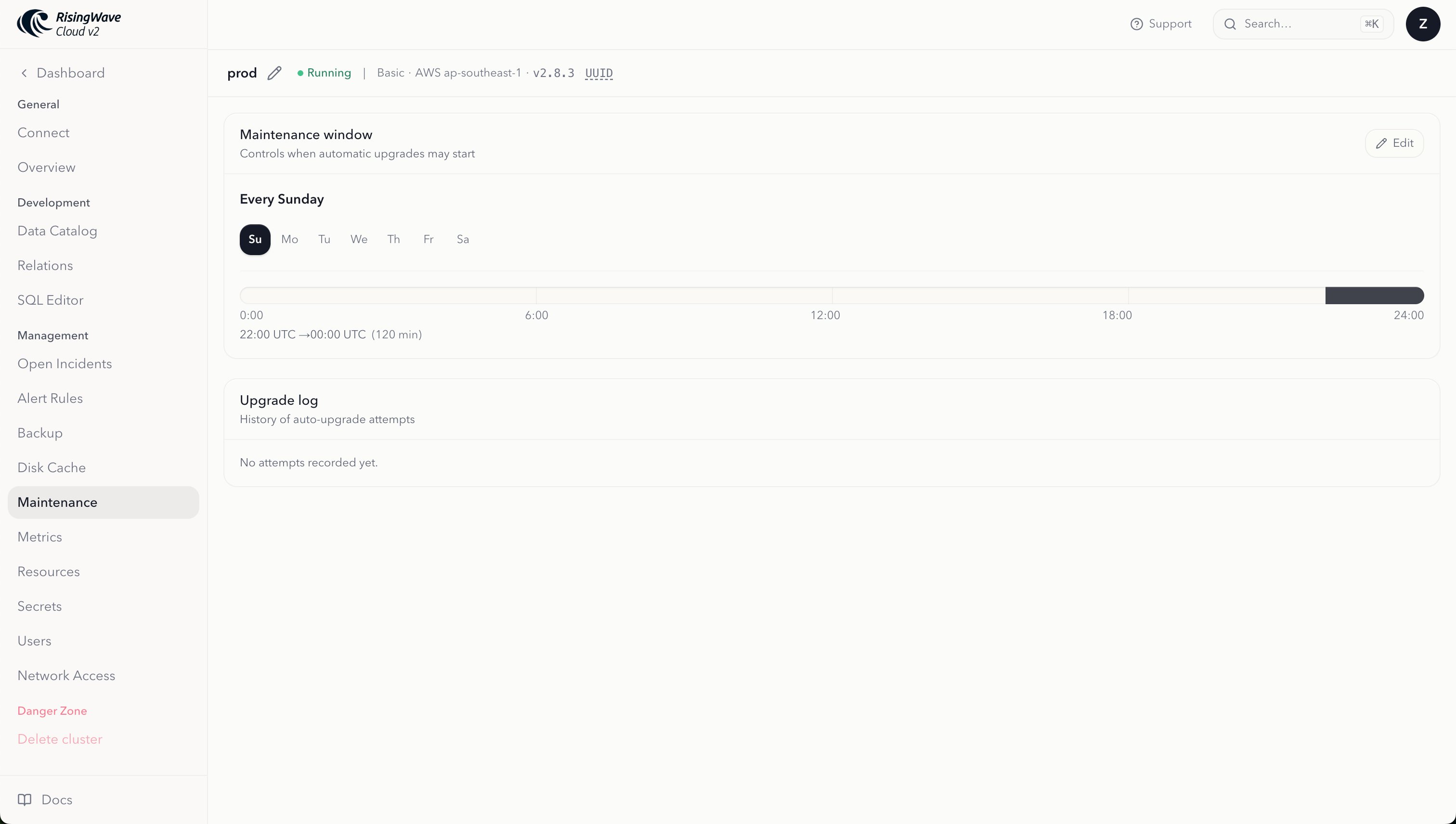
To update the maintenance window for an existing cluster:- Go to the RisingWave Cloud dashboard, open your cluster, and select Maintenance in the cluster navigation.
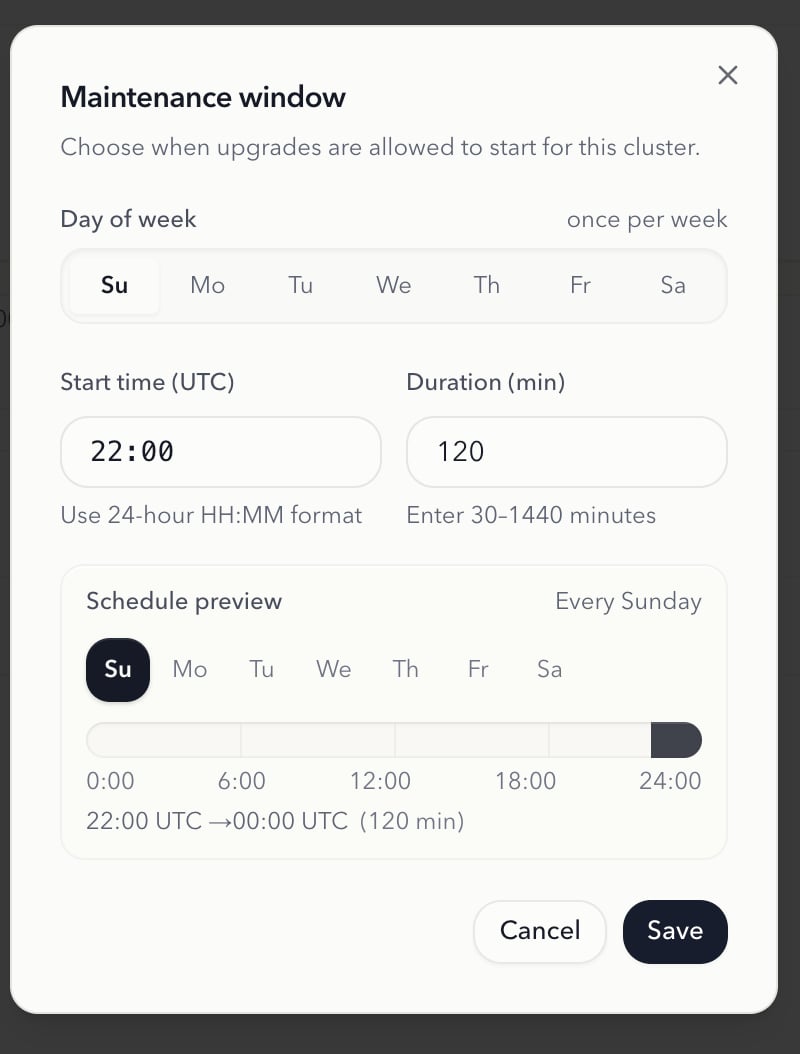
- Click Modify rules to open the Maintenance rules dialog.
- Adjust the settings and click Confirm.
Settings
How automated upgrades work
When your cluster is running a deprecated version, RisingWave Cloud schedules an upgrade as follows:- Detection — The system identifies clusters running versions below the minimum supported threshold.
- Scheduling — An upgrade plan is created and scheduled for the start of your next maintenance window.
- Execution — During the maintenance window, the upgrade runs. If your cluster is stopped, it is temporarily started for the upgrade and then returned to the stopped state afterward.
- Retry — If an upgrade attempt fails, it is rescheduled for the next maintenance window. Up to 3 attempts are made before the plan is marked as failed and the team is alerted.
- A cluster will not have more than one automated upgrade attempt per calendar week.
- A pre-upgrade backup is taken automatically before the upgrade runs.
- Clusters running pre-release or tagged versions (e.g., release candidates) are not eligible for automated upgrades.
View upcoming and past maintenance
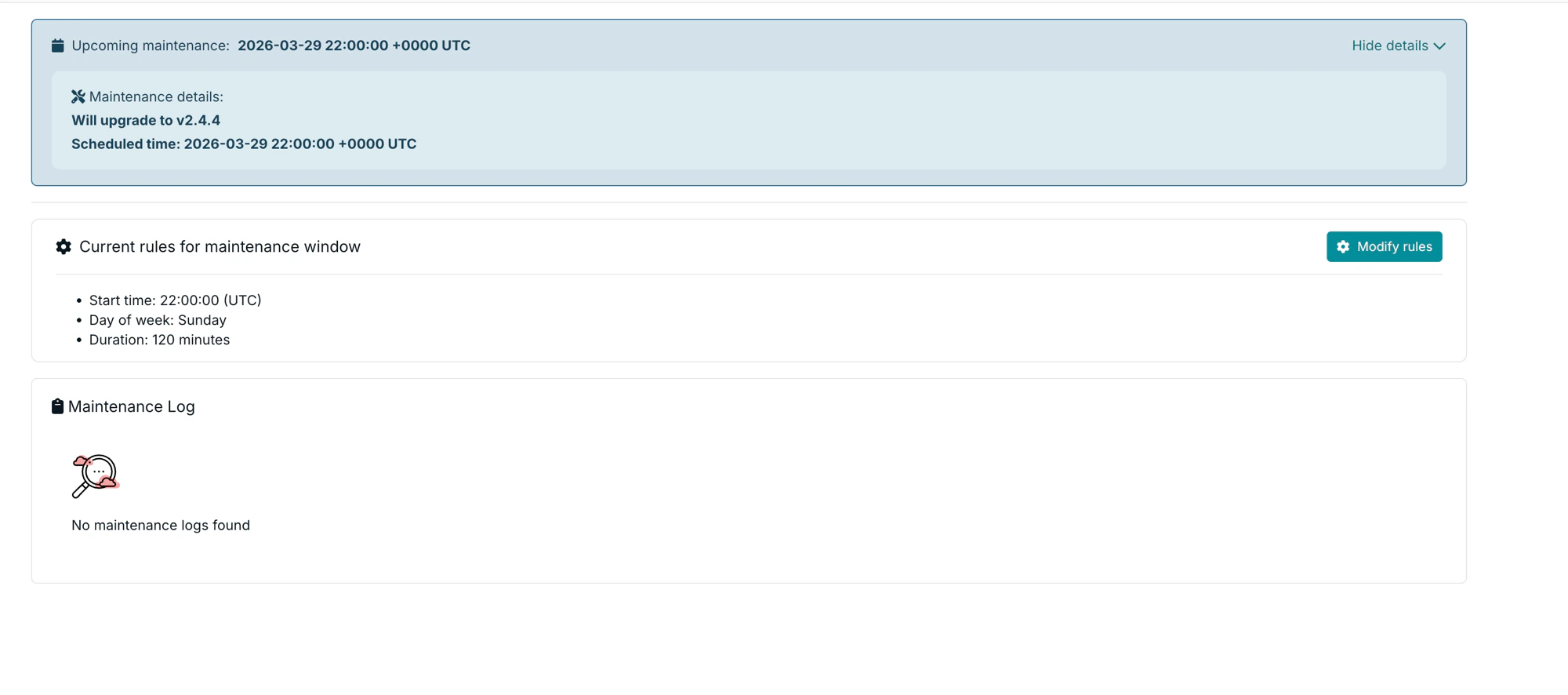
The Maintenance tab shows both the next scheduled upgrade and a log of past maintenance operations. When an upgrade has been scheduled, a banner at the top of the tab shows the upcoming maintenance time and the target version.