

Every RisingWave Cloud cluster comes with a default disk cache configuration. Only Pro plan clusters can customize the cache size and performance tier.
When to use disk cache
The disk cache is beneficial when your workload’s active data (the “working set”) exceeds the available memory on your streaming nodes. Without a disk cache, every cache miss must be served from object storage, which adds latency and increases costs. Common scenarios where disk cache helps:- Large-state streaming jobs: Joins, time windows, and aggregations that generate internal state larger than available memory.
- Data serving with frequent reads: Queries against tables or materialized views where the same data is accessed repeatedly.
- Frequent scaling operations: The cache reduces warm-up time when new nodes are added, since they can read from local disk instead of object storage.
- Reduced object storage costs: Fewer object storage reads by serving data from local disk.
- Lower query latency: Data served from local disk instead of remote object storage.
- Faster scaling and recovery: New or restarted nodes warm up quickly from local disk rather than refetching from object storage.
Cache size
The default cache size scales with your streaming node configuration: approximately 32 GB per RWU for larger streaming nodes (5 RWUs or more), or 100 GB total for smaller streaming nodes. A larger cache reduces the frequency of object storage access.Performance tiers
RisingWave Cloud offers up to three performance tiers that control the I/O throughput and IOPS of the cache. The available tiers depend on your cloud provider and region:Not all tiers are available in every region or cloud provider. The rescale dialog shows only the tiers available for your cluster. For example, some regions may only offer the Standard tier.
View and configure disk cache
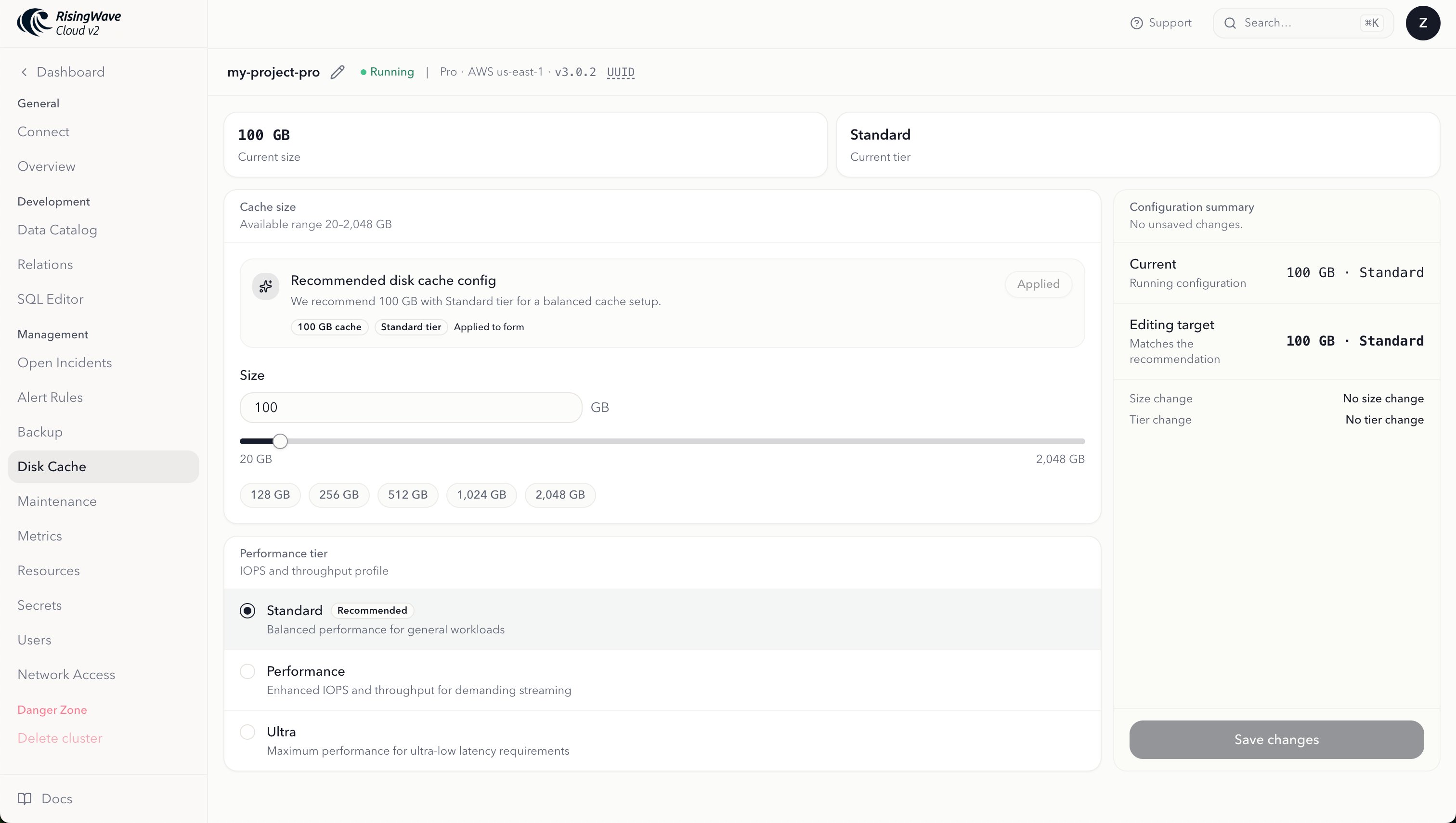
The Disk Cache page shows the current cache configuration and lets you adjust the cache size and performance tier for your cluster.- Go to the RisingWave Cloud dashboard, open your cluster, and select Disk Cache under the Management section.
- Review the Recommended disk cache config panel at the top. Click Apply Recommended to fill the form with the recommended size and tier for your current streaming node shape.
- Adjust Cache Size (GB) using the input, slider, or preset buttons. The minimum is 20 GB and the maximum depends on your cluster.
- Select a Disk Performance Tier. The recommended tier is marked, and only tiers available in your region and cloud provider are shown.
- Click Save Changes to apply the new configuration.
Scale the disk cache during a cluster rescale
When you scale up your streaming nodes, the cache configuration from the previous size may no longer fit the new node shape. An undersized cache or a lower-tier disk can cause temporary performance regressions while new data is fetched from object storage. When the rescale changes the streaming node size, the rescale dialog shows a Disk Cache Configuration section with an Apply recommended optimization toggle. Enable it to resize the cache and select an appropriate performance tier in the same operation.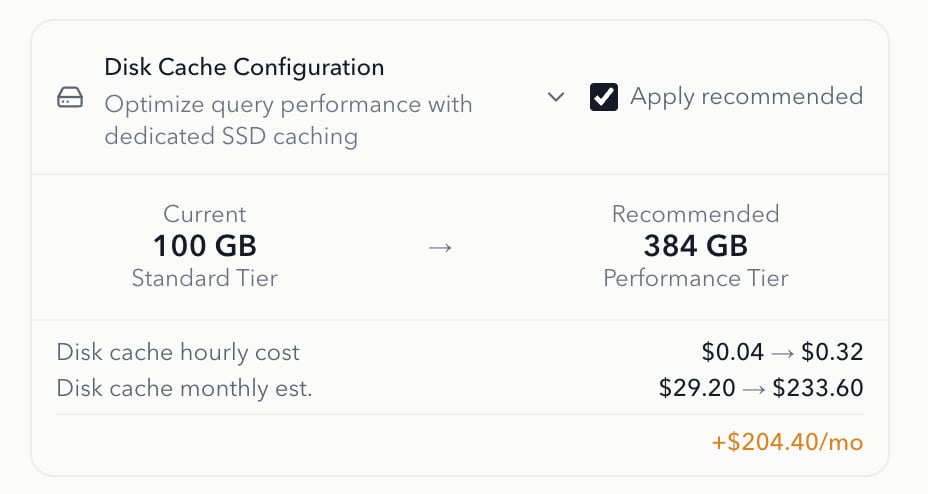
Related topics
- Scale a cluster manually — Scale streaming nodes alongside the cache.