

Overview
Serverless backfilling in RisingWave Cloud runs materialized view, sink, and index backfill jobs on dedicated backfiller resources instead of your main streaming compute nodes. After aCREATE MATERIALIZED VIEW, CREATE SINK, or CREATE INDEX request using serverless backfilling passes validation and is ready to create the streaming job, RisingWave Cloud provisions a temporary resource group for that job by using the configured Backfiller SKU and Replicas as template values. Failed validation paths do not provision backfiller resources.
This page focuses on enabling and sizing the Cloud resources. For SQL usage, session variables, WITH clause options, limitations, and monitoring, see Serverless backfilling.
Configure serverless backfilling
Serverless backfilling settings are separate from the main cluster setup. To enable it:- Open your cluster in the RisingWave Cloud console.
- Select Resources in the cluster navigation.
- On the Resources page, scroll to the Backfilling section. The Serverless backfilling row shows its current status and any active backfill jobs. When the feature is off, the status is Disabled and an Enable button is shown.

- Click Enable to open the configuration dialog. Set the Backfiller size (SKU) and the number of Replicas for the isolated worker profile used by backfill jobs — the dialog shows the resulting Total backfiller RWUs. Click Enable to confirm.
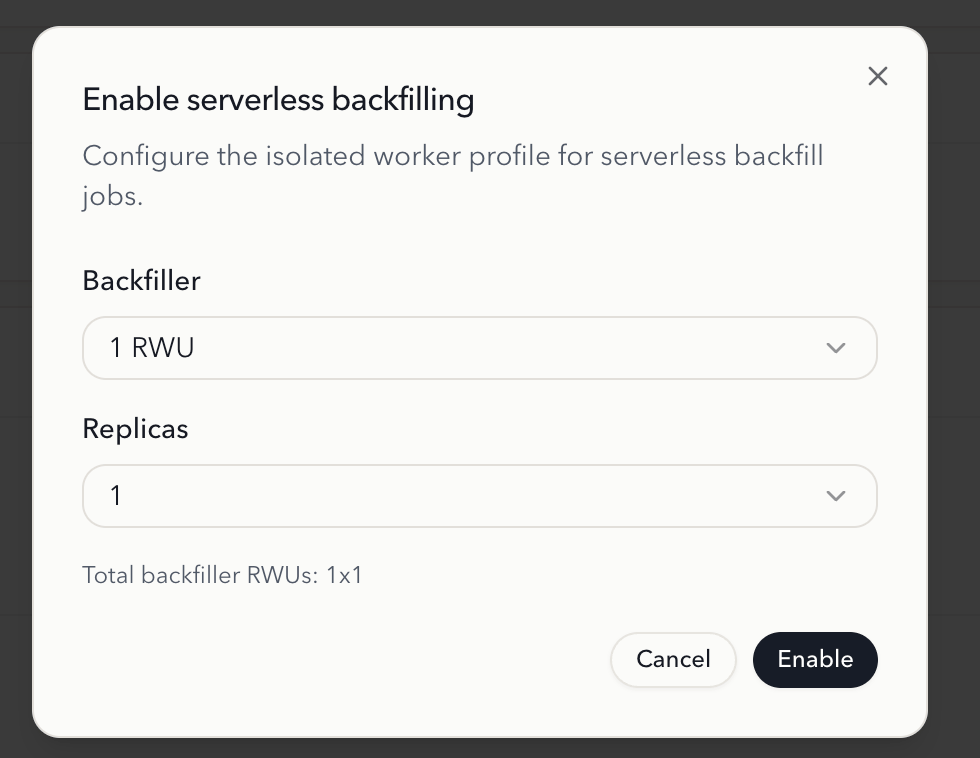
Backfiller SKU
The Backfiller SKU defines the compute size used when RisingWave Cloud provisions the temporary resource group for a serverless backfilling job. Choose a larger SKU for faster backfill throughput on large upstream tables, or a smaller SKU to minimize cost.Replicas
Replicas sets the default replica count used when RisingWave Cloud provisions the temporary resource group for a serverless backfilling job:- Increase the replica count if you expect more concurrent backfill work or need higher throughput.
- Use a smaller replica count if you want to keep backfill resource usage lower.
Scheduling behavior
RisingWave Cloud manages the backfill resources automatically:- After RisingWave validates a new serverless backfilling job and is about to create the streaming job, the serverless backfilling controller creates a dynamic resource group for that job by using the configured Backfiller SKU and Replicas.
- The backfill job runs in that dynamic resource group during materialized view, sink, or index creation.
- After the job is created successfully, it is migrated to its steady-state resource group (the resource group of its parent database) for normal streaming execution.
Use serverless backfilling in SQL
After enabling serverless backfilling in the Cloud console, use eitherSET enable_serverless_backfill = true or WITH (cloud.serverless_backfill_enabled = true) when creating a materialized view, sink, or index.
See Serverless backfilling for:
- SQL examples
- Session-variable and per-statement configuration
- Monitoring and progress tracking
See also
Serverless backfilling
Learn how to use serverless backfilling in SQL, including the session variable,
WITH clause, and monitoring options.Backfill
Learn how RisingWave initializes materialized views from existing data and the different backfill strategies available.
Manage resources
Manage resource groups and databases in your RisingWave Cloud cluster.