

In RisingWave Cloud, Serverless Compaction is shown as Auto-compaction, in the Compactions section of the Resources page. This page uses both names interchangeably.
Overview
In RisingWave’s architecture, the Compactor compacts SSTables produced by Compute Nodes to maintain healthy read and write amplification in the LSM-tree state store. How many compactors you need is workload-dependent: a steady analytical workload may need very few, while a backfill or write-heavy ingestion phase may temporarily need many more. Serverless Compaction lets RisingWave Cloud scale compactors up and down for you. Instead of pinning a fixed compactor SKU and replica count, you set a single upper limit — the maximum compactor range, in RWU — and RisingWave Cloud automatically adjusts how many compactors run, up to that maximum, based on the current compaction workload. It is called serverless because you don’t provision, size, or manage compactor servers yourself: RisingWave Cloud starts and stops them on demand, and you only set how far they can scale. The goal is to:- Keep compaction caught up during ingestion spikes (for example, CDC backfill or historical loads) without manual rescaling.
- Release compactor resources when the workload is quiet, so you pay for the compaction work you actually do.
- Remove the need to memorize compute-to-compactor sizing ratios (the architecture guide recommends 2:1 for steady workloads and up to 1:8 during write-heavy backfill).
How it works
Serverless Compaction has three parts:- Proxy — subscribes to RisingWave’s internal compaction-task stream, hands pending compaction tasks to the compactors, and reports their results back to RisingWave.
- Autoscaler — decides how many compactors should be running, based on how busy the current compactors are.
- Compactors — the workers that run the compaction tasks. RisingWave Cloud manages their size; you set only the maximum they can scale to.
- The proxy pulls pending compaction tasks from RisingWave and dispatches them to available compactors.
- The autoscaler watches compactor load and adjusts the number of running compactors to match the workload, up to your configured maximum.
- Each compactor runs its tasks and reports results back through the proxy. In-progress results are reported before a compactor is removed, so scaling down doesn’t lose completed work.
When to use it
Serverless Compaction is a good fit when:- Your ingestion rate varies significantly over time (bursty CDC, periodic batch loads, backfill jobs).
- You don’t want to manually rescale the compactor tier when starting or finishing large backfills.
- You want compaction cost to track actual compaction work rather than a fixed reservation.
- Your workload is steady and well-characterized, and a fixed reservation is cheaper than autoscaling.
- You need a strict, predictable compactor footprint for capacity planning.
Enable and configure Serverless Compaction
Serverless Compaction is configured from the Compactions section of your project’s Resources page, where it is listed as Auto-compaction.- Open your cluster in RisingWave Cloud.
- Select Resources in the left sidebar.
- Locate the Compactions section. It lists two independent features — Auto-compaction (Serverless Compaction, for RisingWave’s internal state store) and Iceberg compaction (dedicated workers that compact Iceberg tables).
- On the Auto-compaction row, click Configure to open the Edit auto-compaction dialog.

- Set Maximum compactor range to the maximum amount of compactor resources (in RWU) that auto-compaction may use — for example,
0–6 RWU. RisingWave Cloud scales compactors up to this maximum based on workload. Choose a higher maximum for bursty or write-heavy workloads that need more compaction headroom; a lower maximum caps cost. - Click Save.
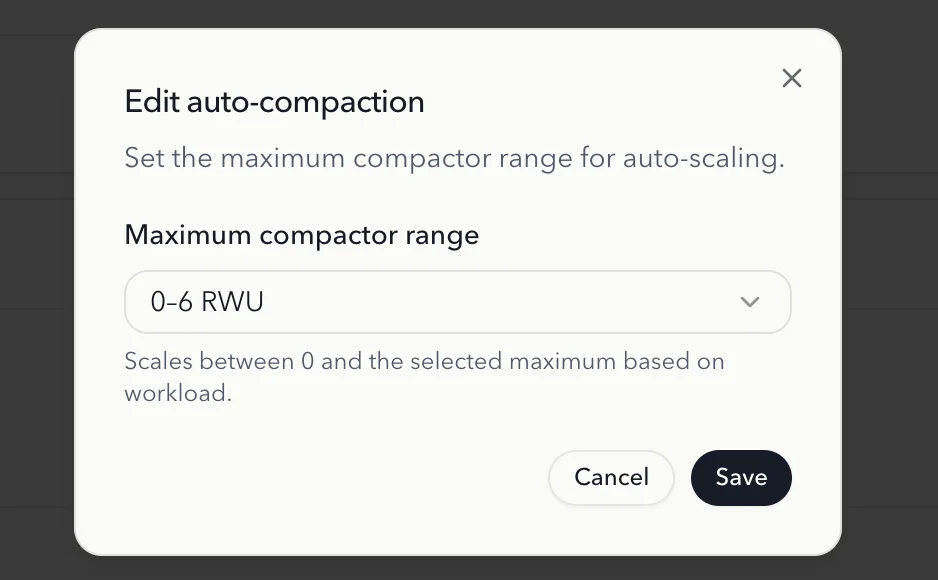
Range 0–6 RWU).
Disable Serverless Compaction
To stop using autoscaled compaction:- Open your cluster in RisingWave Cloud.
- Go to Resources and find the Compactions section.
- On the Auto-compaction row, click Disable.
FAQ
Is Serverless Compaction available on my project?
Is Serverless Compaction available on my project?
Serverless Compaction is available to RisingWave Cloud users across Hosted, BYOC, and BYOK deployments.
What does the maximum compactor range control?
What does the maximum compactor range control?
It sets the maximum amount of compactor resources, in RWU, that auto-compaction may use. RisingWave Cloud scales the number of compactors up to this maximum based on workload, and manages the size of each compactor for you — you only choose the maximum. Pick a value that matches your peak compaction needs: higher for write-heavy or bursty workloads, lower to cap cost.
What is the difference between Auto-compaction and Iceberg compaction?
What is the difference between Auto-compaction and Iceberg compaction?
They are separate features that appear in the same Compactions section. Auto-compaction (Serverless Compaction) autoscales compaction for RisingWave’s internal LSM-tree state store. Iceberg compaction runs dedicated, fixed-size workers that compact Iceberg tables and is configured with its own SKU and replica count. Enabling one does not enable the other.
How long does it take to scale up another compactor?
How long does it take to scale up another compactor?
The autoscaler re-evaluates compactor load every few seconds and adds compactors incrementally as load rises, up to your maximum compactor range. Bringing up a compactor usually takes on the order of tens of seconds; it can take a few minutes when the underlying Kubernetes cluster has to provision a new node to schedule the compactor on.
When does Serverless Compaction scale down to zero compactors?
When does Serverless Compaction scale down to zero compactors?
While your cluster is actively running compaction, it keeps at least one compactor — the autoscaler doesn’t remove the last compactor from an active workload, so compaction resumes right away when load returns. A cluster sits at zero compactors only when it hasn’t run any compaction (for example, a newly provisioned or otherwise idle project); when the first compaction work arrives, RisingWave Cloud starts a compactor automatically, which adds a short start-up delay but loses no data. If you want a compactor kept warm even on a brand-new or long-idle cluster, use fixed manual compactor sizing instead.
How is Serverless Compaction priced?
How is Serverless Compaction priced?
Compactor usage is billed on the RWU-hours actually used over time, rather than a fixed reservation, so you pay for the compaction work you do. See Pricing and Check spending details for current rates and how to view usage.
See also
Scale a project manually
Set a fixed Compactor Node SKU and replica count when not using Serverless Compaction.
Architecture
Understand the Compute / Compactor / Meta layers and how compaction fits into the LSM state store.
Manage resources
Manage resource groups, databases, and the Resources page in RisingWave Cloud.